

Connecting Google Docs to Knoon Agents Using Tools

Imagine this. A customer reports a bug or files a complaint. Instead of your team switching tabs or typing everything manually, your Knoon agent creates or updates a Google Doc inside your organisation’s Google Drive. It fills in details, updates templates, appends notes and keeps your internal documents organised automatically in the background.
Google Docs becomes your team’s living workspace for logs, reports, summaries, meeting notes and documentation. And with Knoon tools, your AI agents can generate, edit and maintain these internal documents in real time. Everything stays securely within your company’s Google Drive, ready for your team to access, review or refine.
This guide explains how Google Docs works inside Knoon, what actions are available, who needs this integration and how to equip your agents with Google Docs tools to automate your internal documentation workflows.
Why Connect Google Docs to Knoon?
Most teams already use Google Docs as their collaboration hub for:
- Customer support logs
- Bug reports
- Feature request documentation
- Meeting notes
- SOPs and internal guidelines
- Summaries and reports
- Content drafts
- Investigation notes
With Knoon agents, you can streamline this even further. Instead of writing documents manually, your agent can:
- Create a new Google Doc based on a conversation
- Update an existing Doc with new details
- Log complaints or findings automatically
- Summarise long conversations into structured documents
- Append agent memos or analysis
- Maintain investigation histories without human effort
Google Docs becomes the agent’s writing space, documentation hub and knowledge output engine.
Who Should Use Google Docs with Knoon?
This integration is ideal for teams who:
- This integration is ideal for teams that rely on documentation-heavy workflows:
- SaaS companies managing support and engineering notes
- Customer success teams preparing summaries
- Operations teams maintaining SOP updates
- Marketing teams drafting and refining content
- Internal support desks capturing incident reports
- QA teams logging bugs and reproduction steps
- Compliance teams documenting cases
If documentation is part of how your team works, Knoon and Google Docs can make it faster, cleaner and more automated.
What Google Docs Tools Can Do in Knoon
Based on the built-in Google Docs endpoints available in Knoon, here are the most useful tools you can create:
Create Document
Agents can generate a new Google Doc instantly. Your agent can fill it with:
- Chat summaries
- Bug reports
- Customer feedback notes
- Meeting minutes
- Investigation logs
- Ticket transcripts
Append Text to Document
Adds formatted text at the end of a document.
- Adding new feedback
- Updating running logs
- Appending transcripts
- Adding new observations or internal notes
Find and Replace
Updates placeholders inside templates.
Useful for personalised contracts, agreements, letters, summaries or dynamic document generation.
Get Document Structure
Retrieves elements of a document.
Enables agents to analyse sections or extract headings before taking further actions.
Get Content by Index
Extracts specific sections for rewriting, summarising or updating.
Update Content by Index
Allows the agent to overwrite a specific part of the document.
Ideal for editing, rewriting or inserting improved content.
These actions combined enable a Knoon agent to behave like a genuine content assistant, actively generating, editing, and enhancing documents during a conversation.
How to Create and Equip Google Docs Tools in Knoon
Knoon makes it easy to turn a document action into an AI capability. Follow these steps to create and attach a Google Docs tool.
Create a Google Docs Tool
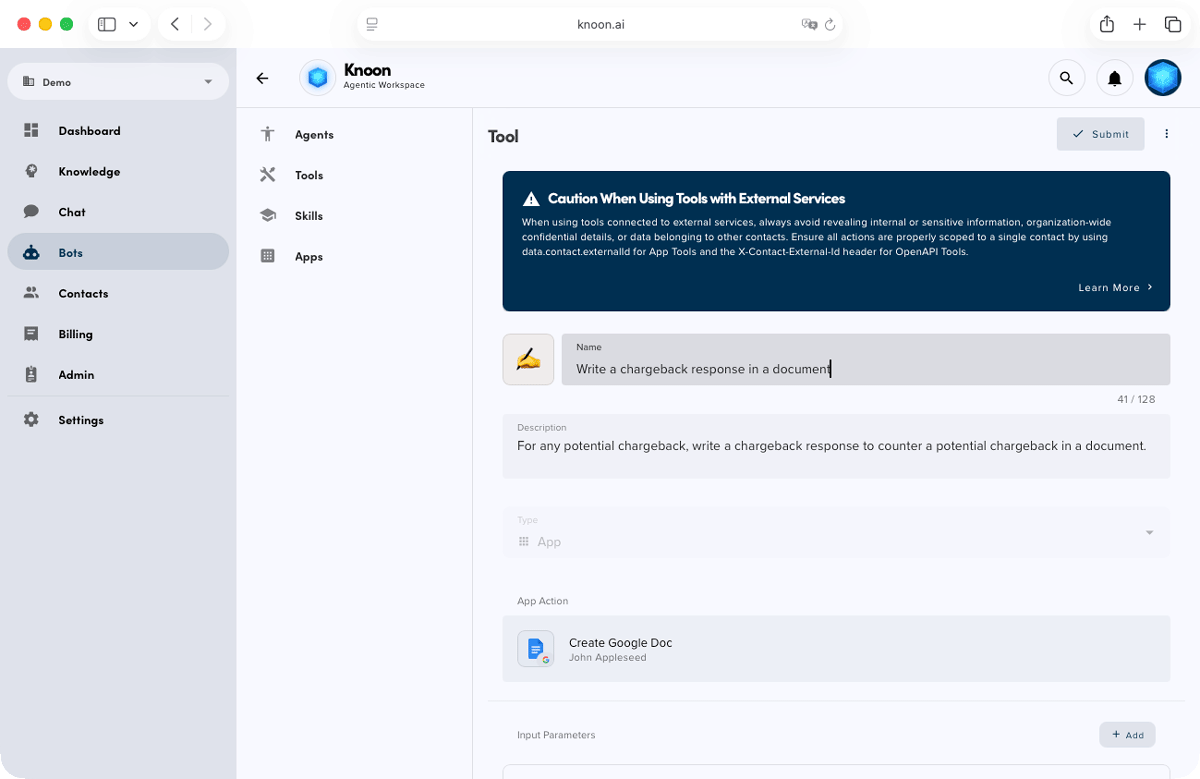
- Open Knoon.
- Go to Bots → Tools.
- Press Create.
- Enter a name and description for your tool.
- (Optional) Enable Provide alternative description to LLM for clearer instructions.
- Choose App as the Tool Type.
- Press Select an App Action.
- Pick Google → Google Docs.
- Choose an action such as Create Document, Append Text or Find and Replace.
- Define your agent variables.
- Configure action payload if needed.
- Press Submit.
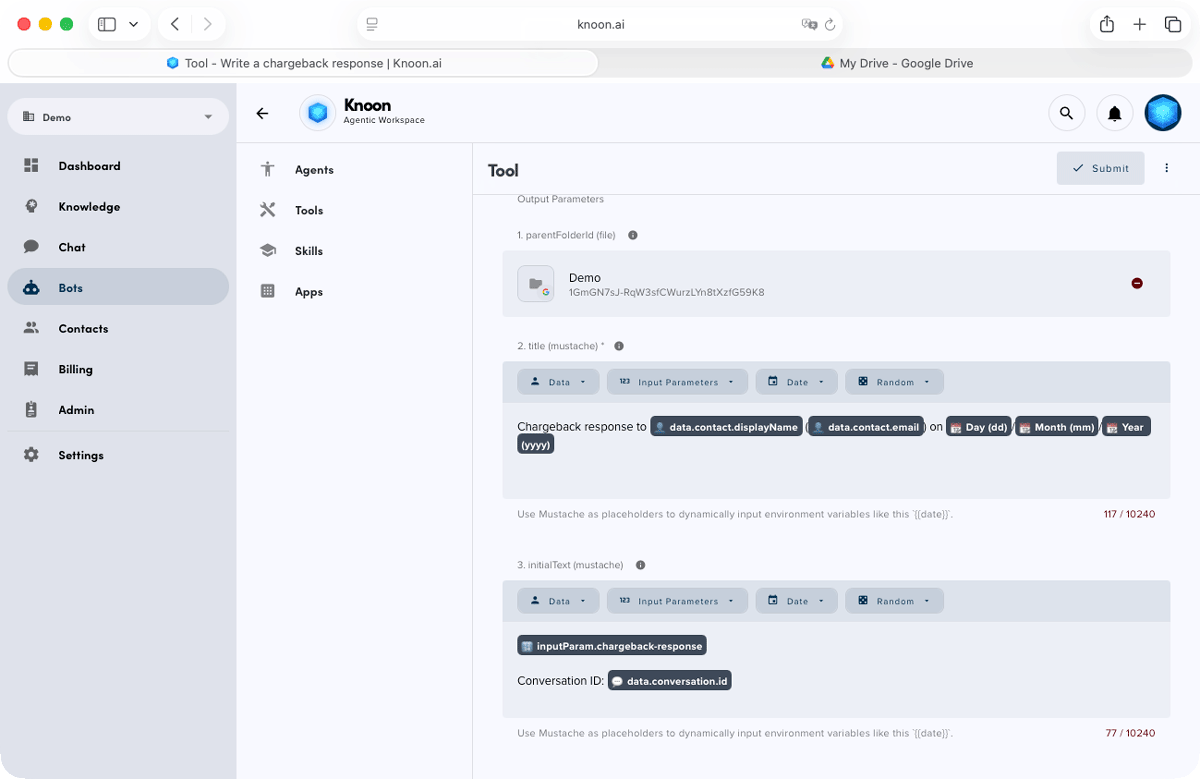
Your new Google Docs tool is now available for agents to use.
Attach the Tool to an Agent
- Go to Bots → Agents.
- Select an agent.
- Scroll to the Tools section.
- Select the Google Docs tool you created.
- Press Submit.
Your agent is now fully equipped to create and write into Google Docs during conversations.
Example Knoon & Google Docs Workflows
Let’s see what this looks like in practice.
Bug Report Logging
A user reports, “There’s a bug. The payment page keeps freezing whenever I try to check out.” The agent acknowledges the issue, asks follow-up questions, and gathers the necessary metadata.
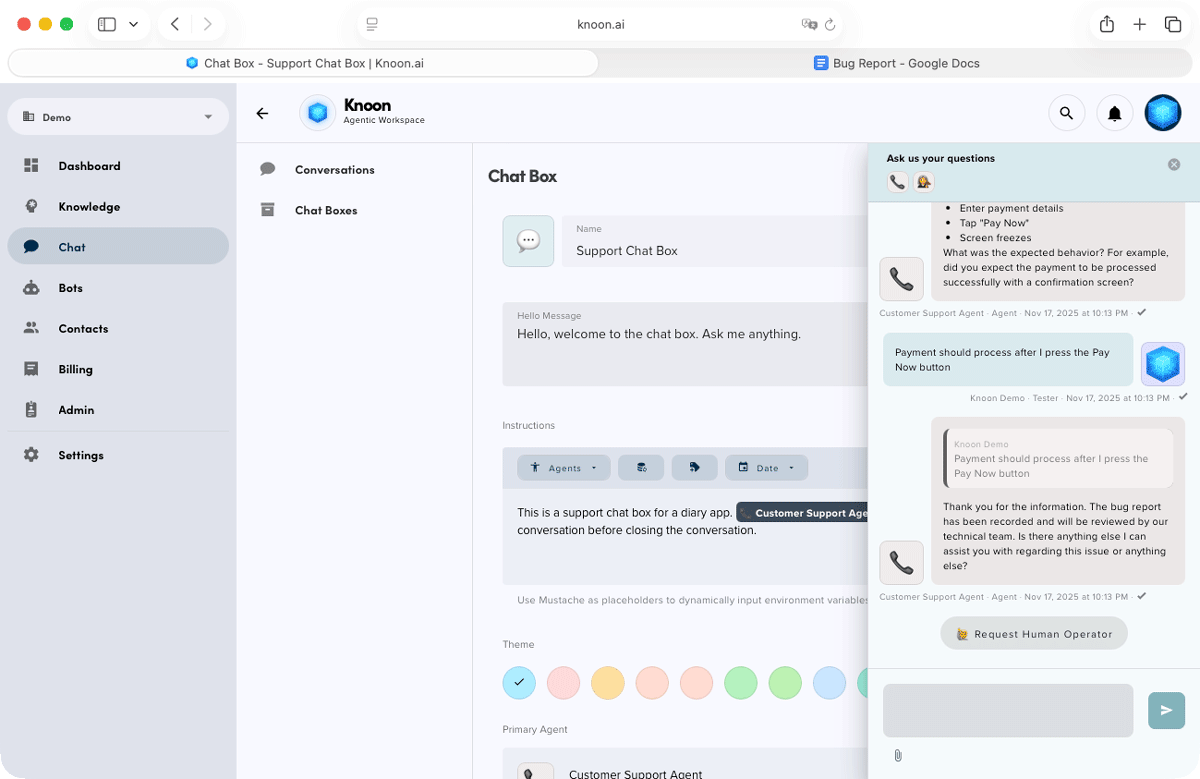
Behind the scenes, it then activates the Google Docs tool, creating a new bug report document or appending the details to an existing engineering log so the issue is captured instantly and accurately without any manual work.
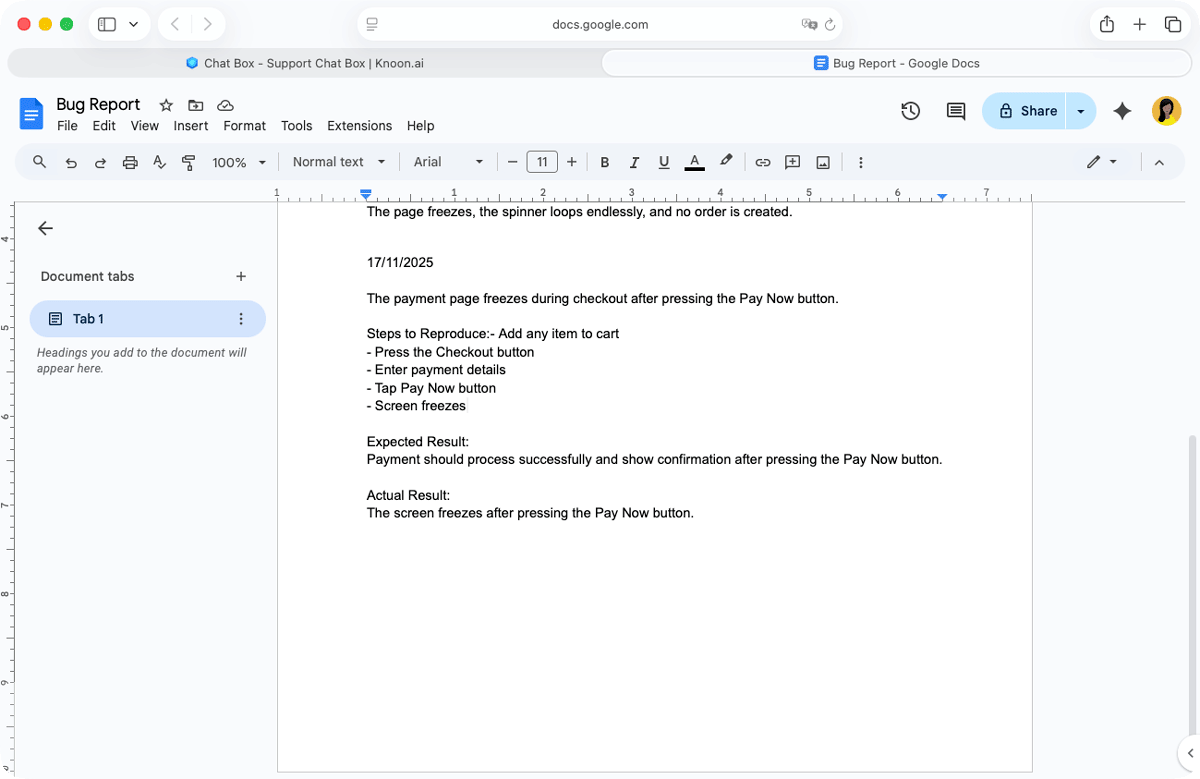
It inserts:
- Summary of the issue
- Steps to reproduce
- Timestamp
Your engineering team opens Google Docs and finds a neatly formatted bug report, automatically created within seconds. No manual typing. No copy-paste.
Generating a Potential Chargeback Response Document
Let’s look at another powerful real-world scenario such as handling potential chargebacks.
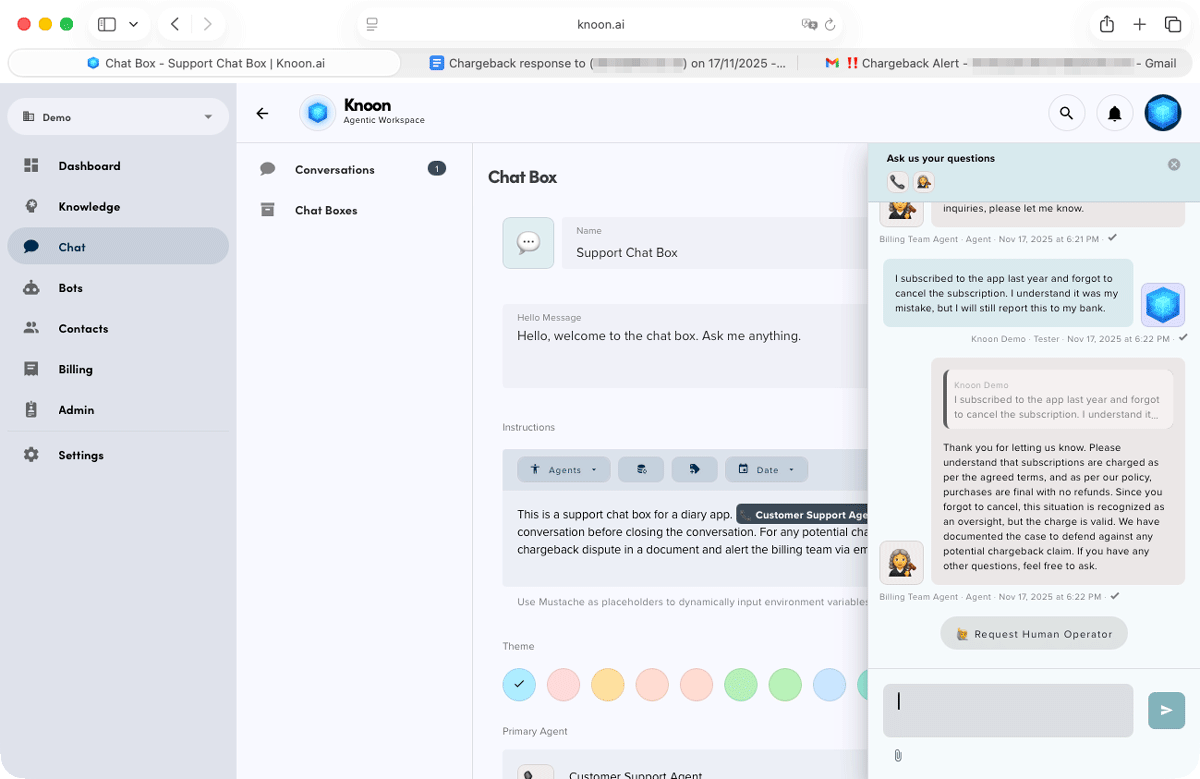
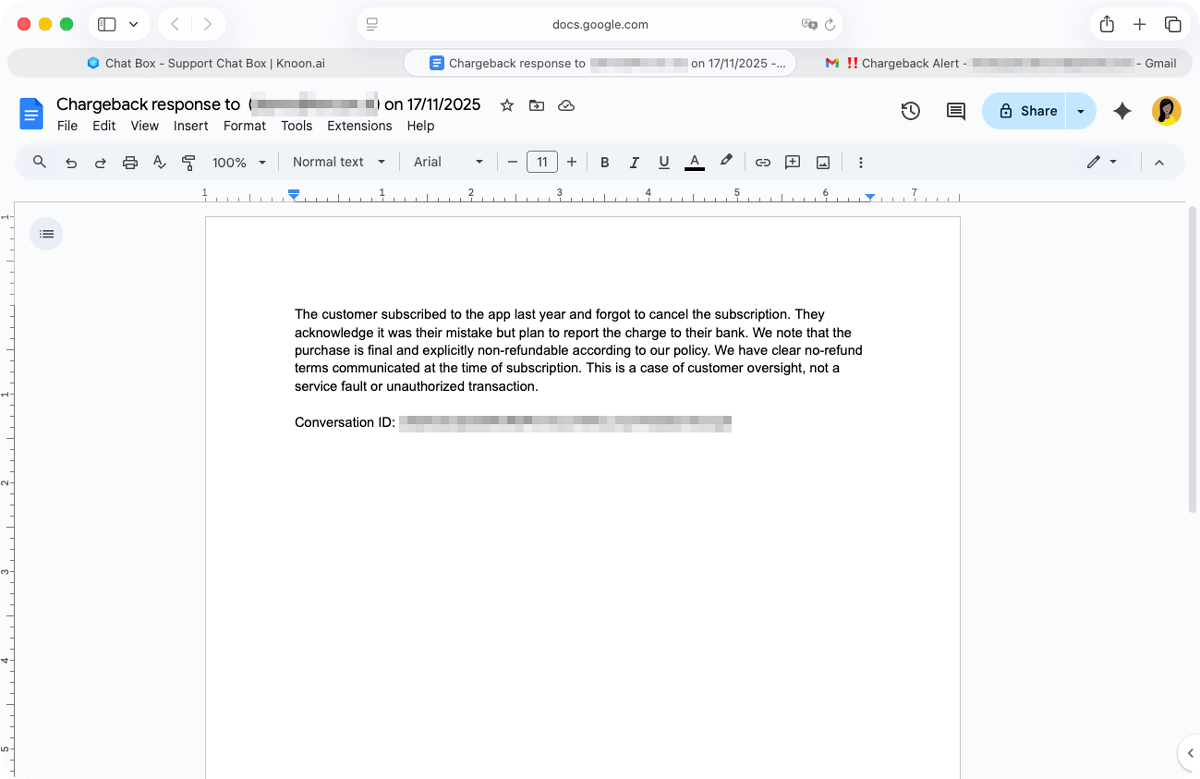
The user says, “I’m unhappy with the product. If I don’t get a refund today, I’ll contact my bank and file a chargeback.” Your Knoon agent immediately recognises this as a high-risk, urgent case. It then triggers the Google Docs tool to generate an internal chargeback response document containing a well-structured chargeback rebuttal, outlining the reasons to refute the customer’s claim. This document can include:
- A summary of the customer’s request and complaint
- Proof of service delivery or product usage
- Billing history and timestamps
- Logs or subscription activity
- Terms of service related to refunds or renewals
- Evidence that the user acknowledged the charges
- A drafted rebuttal statement for the billing team
- A recommended action plan (refund, goodwill credit, investigation)
- Case ID and timestamp
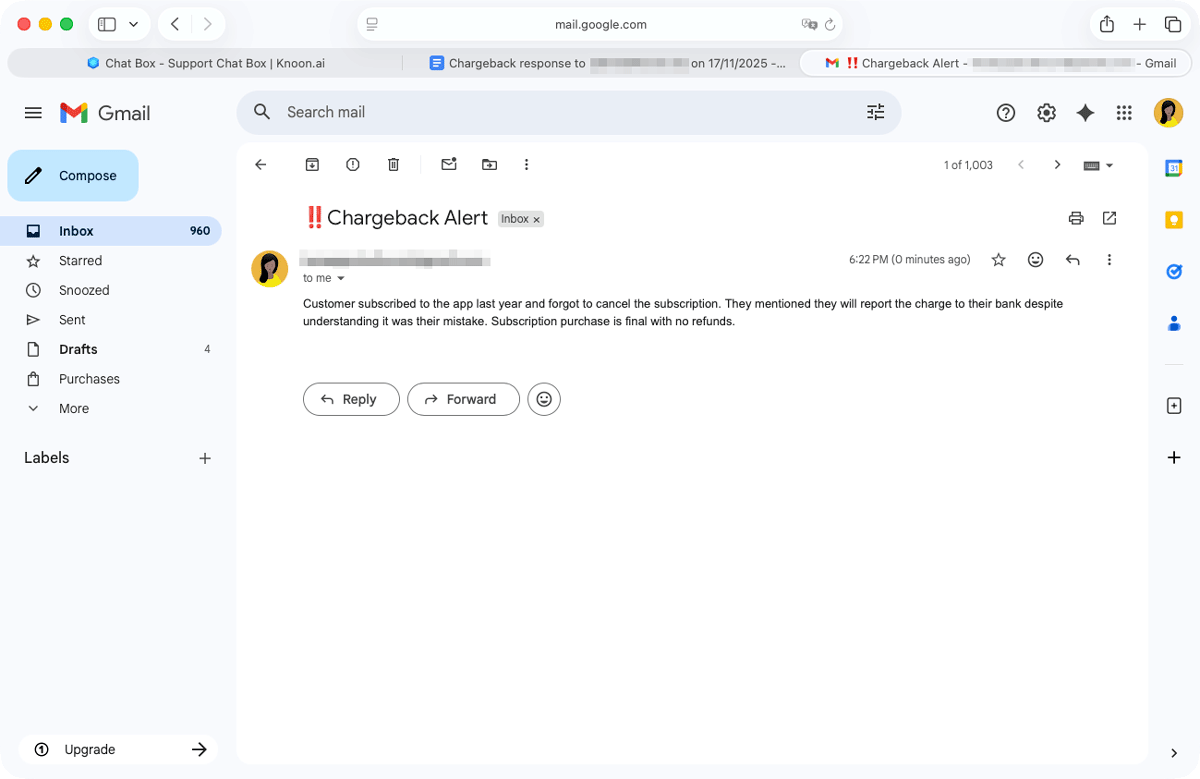
Your agent can also send an email alert to your billing team at the same time using the SMTP tool.
This saves your team precious time, ensures consistent handling, and preserves detailed documentation for compliance or dispute resolution.
Connecting Google Docs to Knoon transforms how your team documents information. Your agents can now create and update internal documents automatically, ensuring consistent, organised and up-to-date records without manual effort.
From bug reports to summaries, from SOP updates to feedback logs, your Knoon agent becomes a reliable digital teammate working inside your organisation’s Google Workspace.
We can’t wait to see how you use Google Docs automation in your Knoon workspace.