

Connecting Google Calendar to Knoon Agents Using Tools

Imagine you run a busy appointment-based business such as a hair salon or a clinic. Customers contact you every day to book or adjust their appointments. They might ask, “Hi, can I book an appointment tomorrow?” or “Is your team available at 11:30 AM?” Others need changes like, “Can I reschedule my appointment to next Wednesday?” Every request requires checking availability, finding the right time, and updating the calendar, which can quickly overwhelm your staff.
Now imagine a different experience.
A customer sends the same message, but this time your agent answers immediately. It checks your staff member’s Google Calendar in real time, finds an available slot, books the appointment, and sends a confirmation. If the customer needs to change it, the agent updates the calendar automatically. Everything happens within seconds and without any manual effort from your team.
This is the power of connecting Google Calendar to Knoon Agents.
Why Connect Google Calendar to Knoon?
Most appointment-based businesses already use Google Calendar as their scheduling backbone for:
- Customer appointments
- Staff availability and shift planning
- Room or equipment bookings
- Follow-up reminders
- Consultation slots
- Daily operational schedules
- Coordination across multiple team members
- Managing personal and shared calendars
With Knoon agents, you can streamline and automate all of this. Instead of checking calendars manually, your agent can:
- Find availability in real time
- Suggest suitable time slots automatically
- Create new appointments on behalf of your team
- Reschedule existing bookings when customers request changes
- Prevent double bookings with built-in conflict detection
- Manage multiple calendars for staff, rooms, or services
- Update events instantly with new details or changes
Google Calendar becomes your agent’s scheduling system, booking assistant, and coordination engine.
Who Should Use Google Calendar with Knoon?
This integration is ideal for teams that rely on time-based or appointment-driven workflows:
- Clinics and healthcare providers managing consultations and follow-ups
- Hair salons and beauty services offering stylist or specialist appointments
- Wellness professionals such as therapists, chiropractors, or trainers
- Sales and demo teams scheduling product walkthroughs
- Operations teams coordinating staffing and room usage
- Service providers like repair, installation, or on-site visits
- Consultants and freelancers managing client sessions
- Education and coaching teams planning lessons or one-on-one sessions
If scheduling is part of how your team works, Knoon and Google Calendar make it faster, smoother, and fully automated.
What Google Calendar Tools Can Do in Knoon
Based on the built-in Google Calendar endpoints available in Knoon, here are the most useful tools you can create:
List Calendars
Your agent can retrieve all calendars the user has access to, such as personal calendars, staff calendars, or shared team calendars. This helps the agent choose the correct place to add or check events.
List Events
Your agent can pull upcoming events from any specific calendar. This allows it to understand what’s already scheduled, read meeting details, and reference appointments during conversations.
Create Event
Agents can add new appointments directly into Google Calendar. They can set the title, date, time, duration, description, location, and attendees—perfect for making bookings instantly via chat.
Update Event
If a customer needs to change their appointment, the agent can update an existing event’s time, title, notes, or any basic field. No manual editing required.
List Availability
Your agent can automatically fetches time windows inside a calendar. That means it can propose open slots without guessing, helping customers pick a time that works.
Search Events by Extended Property
Agents can look up events using custom metadata, allowing more advanced workflows such as tracking appointment IDs, tagging bookings, or retrieving events the agent previously created.
Cancel Event
Agent can cancel appointments directly in Google Calendar.
How to Create and Equip Google Calendar Tool in Knoon
Knoon makes it easy to turn calendar actions into powerful AI scheduling capabilities. Follow these steps to create and attach a Google Calendar tool.
Create a Google Calendar Tool
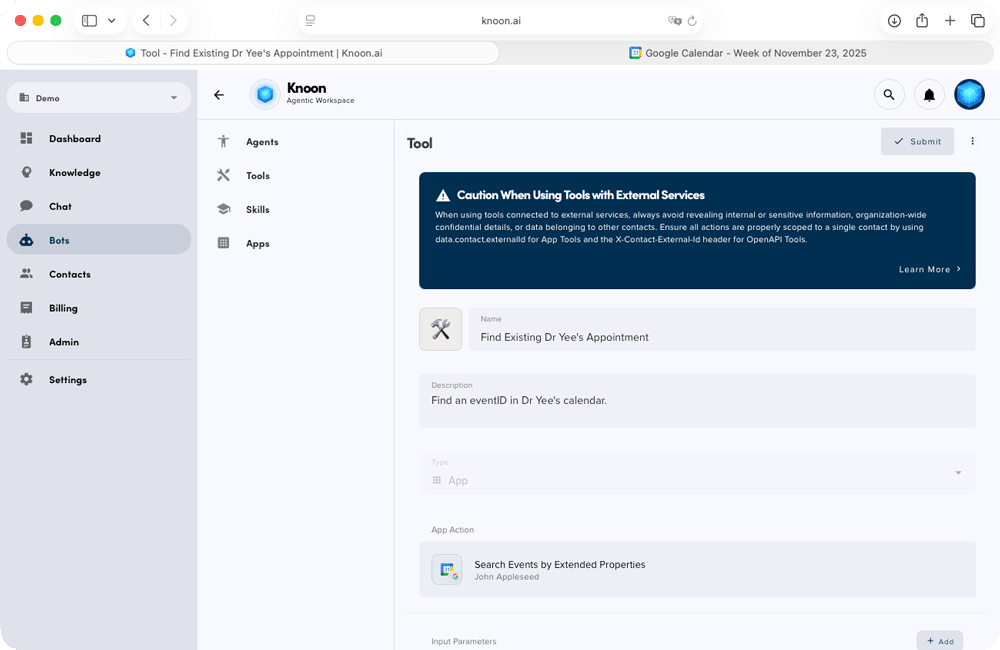
- Open Knoon.
- Go to Bots → Tools.
- Press Create.
- Enter a name and description for your tool.
- (Optional) Enable Provide alternative description to LLM for clearer instructions.
- Choose App as the Tool Type.
- Press Select an App Action.
- Pick Google → Google Calendar.
- Choose an action such as List Event, Create Event, Update Event, List Availability & more.
- Define your agent variables.
- Configure action payload if needed.
- Press Submit.
Your new Google Calendar tool is now available for agents to use.
Attach the Tool to an Agent
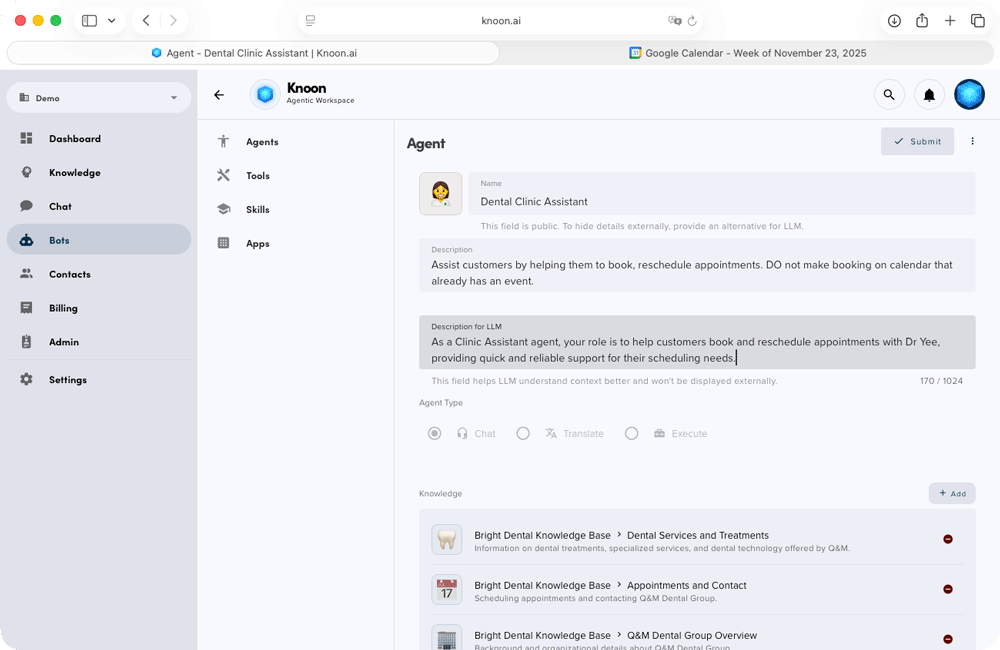
- Go to Bots → Agents.
- Select an agent.
- Scroll to the Tools section.
- Select the Google Calendar tool you created.
- Press Submit.
Your agent is now fully equipped to check availability, create appointments, and update events in Google Calendar directly within conversations.
Example Knoon & Google Calendar Workflows
Here’s how it works in a real scenario.
A clinic assistant agent helps customers schedule appointments and checks whether the doctor is available. For this demo, we’ll assume there is one doctor i.e. Dr Yee.
Setup Google Calendar Tools
To automate scheduling for this example clinic workflow, you will create 5 Google Calendar tools:
- Check Availability (List Availability)
- Create Appointment (Create Event)
- Find Existing Appointment (Search events by extended properties)
- Update Appointment (Update Event)
- Cancel Appointment (Cancel Event)
Below is a step-by-step guide for setting up each tool.
Check Dr Yee's Availability
- In the create a new tool page,
Name: Check Dr's Yee calendar
Description: List time slots of Dr Yee calendar. - Choose App as the Tool Type.
- Press Select an App Action.
- Pick Google → Google Calendar → List Availability.
- Select Dr Yee's Google Calendar.
- Configure the agent variables.
Name:startDate
Description:Start date of the query in ISO8601.
Name:endDate
Description:End date of the query in ISO8601. - Configure the action payload.
start:{{startDate}}
end:{{endDate}}
durationMinutes:30 - Done!
Create Appointment in Dr Yee's Calendar
- In the create a new tool page,
Name: Book Appointment with Dr Yee.
Description: Create an appointment with Dr Yee in the calendar. - Choose App as the Tool Type.
- Press Select an App Action.
- Pick Google → Google Calendar → Search.
- Select Dr Yee's Google Calendar.
- Configure the agent variables.
Name:start-time
Description:Start date time of the appointment with Dr Yee in ISO8601.
Name:end-time
Description:End date time of the appointment with Dr Yee in ISO8601.
Name:title-appointment
Description:Title of the appointment
Name:summarise-appointment
Description:A summary of the appointment - Configure the action payload.
summary:{{data.contact.email}} : {{title-appointment}}
Description:{{summarise-appointment}}.
startDateTime:start-time
endDateTime:end-time - Done!
Find Existing Dr Yee's Appointment
- In the create a new tool page,
Name: Find Existing Dr Yee's Appointment.
Description: Find an eventID in Dr Yee's calendar. - Choose App as the Tool Type.
- Press Select an App Action.
- Pick Google → Google Calendar → Search events by extended properties.
- Select Dr Yee's Google Calendar.
- Configure the action payload.
Query:{{data.contact.email}} - Done!
Update an Appointment with Dr Yee
- In the create a new tool page,
Name: Update an Appointment with Dr Yee
Description: Update an Appointment in Dr Yee's calendar - Choose App as the Tool Type.
- Press Select an App Action.
- Pick Google → Google Calendar → Update Event.
- Select Dr Yee's Google Calendar.
- Configure the agent variables.
Name:eventId
Description:eventID of the appointment that needs to be modified.
Name:start-time
Description:Start date time of the appointment with Dr Yee in ISO8601.
Name:end-time
Description:End date time of the appointment with Dr Yee in ISO8601.
Name:title-appointment
Description:Title of the appointment
Name:summarise-appointment
Description:A summary of the appointment - Configure the action payload.
eventID:{{eventID}}
summary:{{data.contact.email}} : title-appointment
Description:summarise-appointment
startDateTime:start-time
endDateTime:end-time - Done!
Cancel Existing Dr Yee's Appointment
- In the create a new tool page,
Name: Cancel Appointment in Dr Yee's Calendar
Description: Cancel Appointment in Dr Yee's Calendar - Choose App as the Tool Type.
- Press Select an App Action.
- Pick Google → Google Calendar → Cancel Event
- Select Dr Yee's Google Calendar.
- Configure the agent variables:
Name:eventID
Description:This is the eventID of the appointment to be cancelled. - Configure the action payload.
eventID:{{eventId}} - Done!
Once the tools are setup, attach them to an agent and test its response.
Ask the agent to find an available 1 PM slot this week
We first asked the agent to find a 1 PM appointment on any day this week and to suggest the next available day. The agent check Dr Yee's schedule and correctly responded that Dr. Yee has no availability at 1 PM on Tuesday (Nov 25), Wednesday (Nov 26), or Thursday (Nov 27). However, it found that a 1 PM slot is available on Friday (Nov 28) and asked whether we would like to book that time.
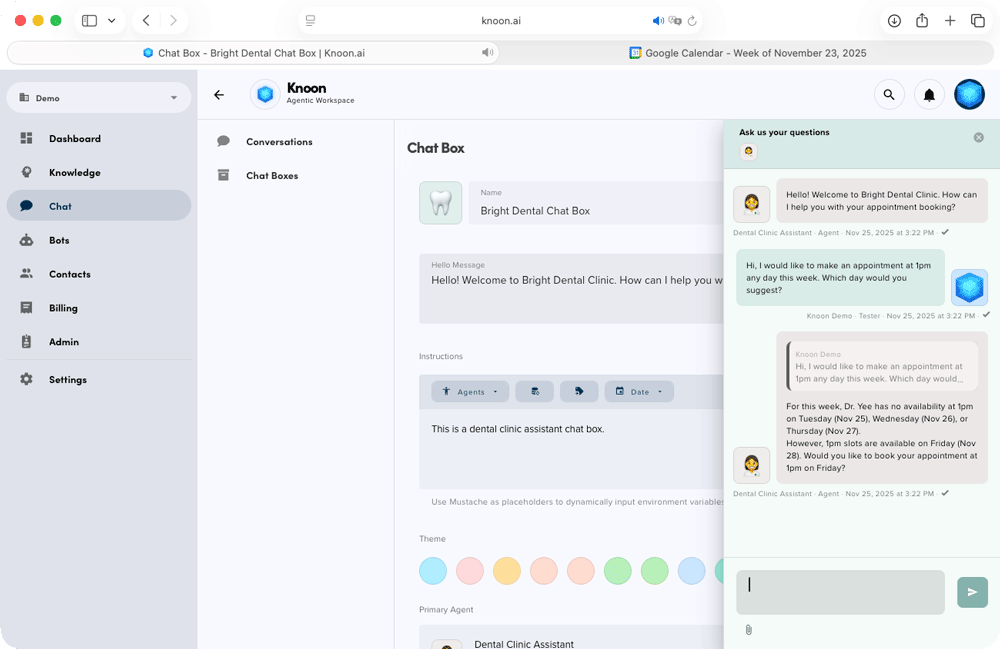
We then instructed it to book the Friday 1 PM slot. The agent proceeded to create the appointment using the Google Calendar Create event tools.
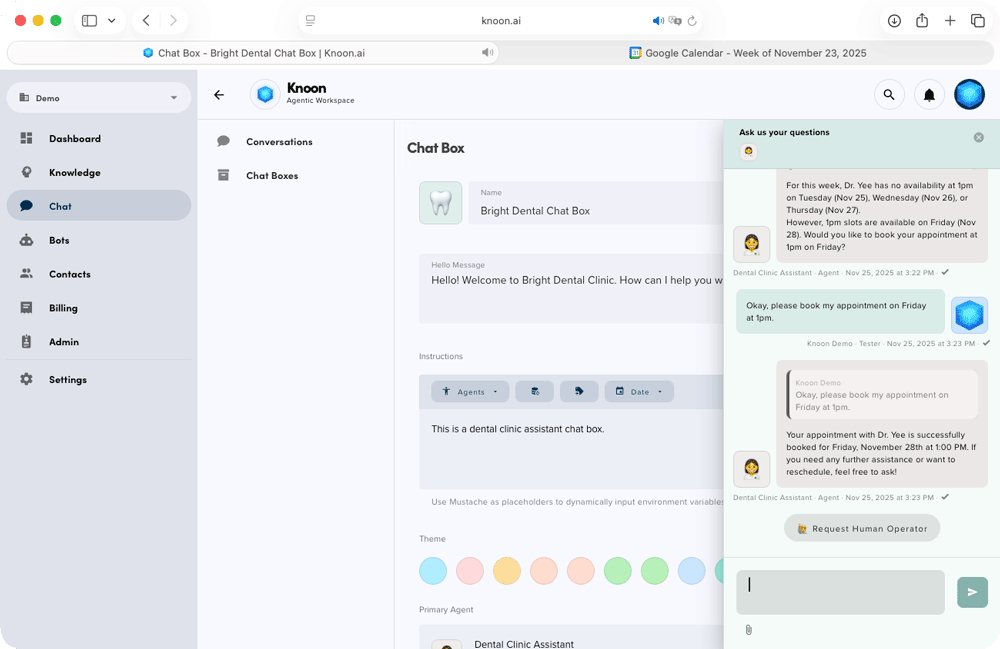
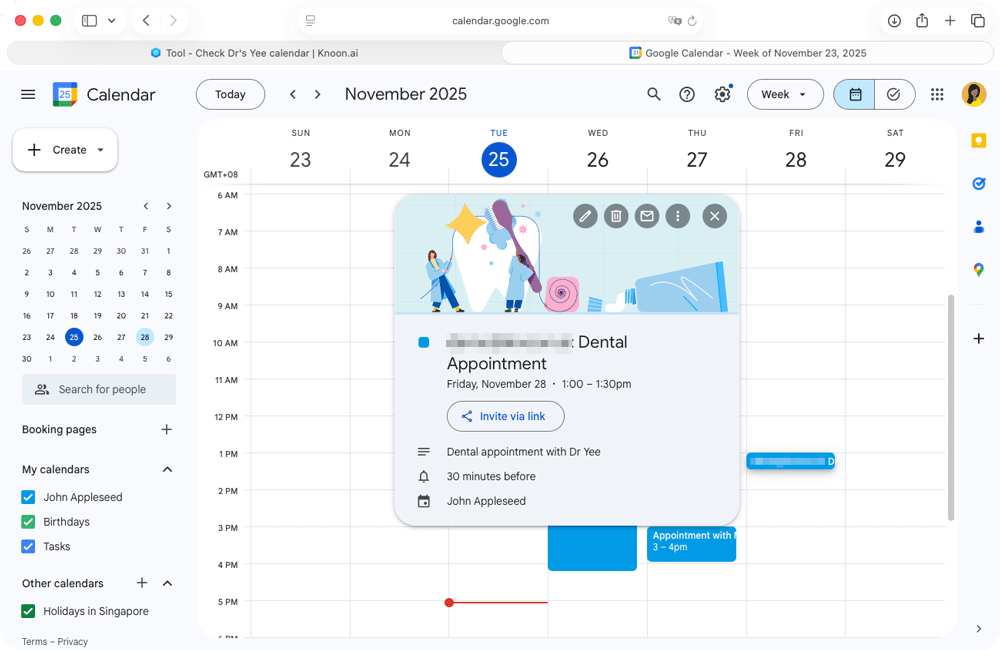
Upon checking Dr. Yee’s calendar, we confirmed that the booking was created correctly. The right date and time, the user’s email, and the appointment name followed by the event summary.
Good work so far!
Change Appointment to Another Date & Time
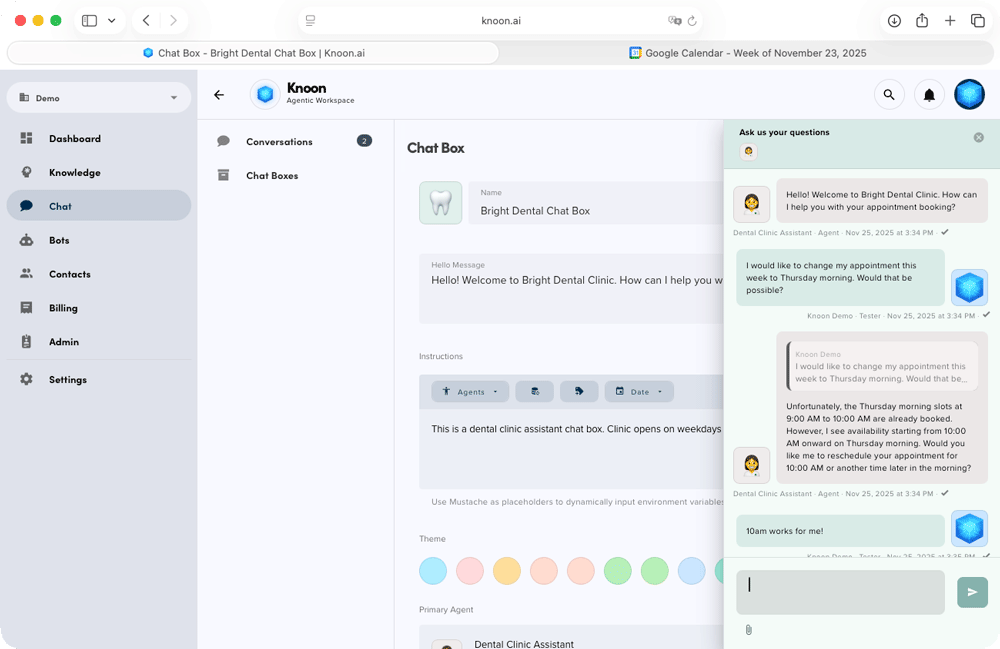
Next, we asked the agent to move the appointment to a Thursday morning instead of Friday at 1 PM. The agent searched for the existing appointment under the user’s email and checked Dr. Yee’s schedule. It identified that the 9–10 AM slot on Thursday was already booked and correctly suggested 10 AM, which was the only available slot on Thursday morning.
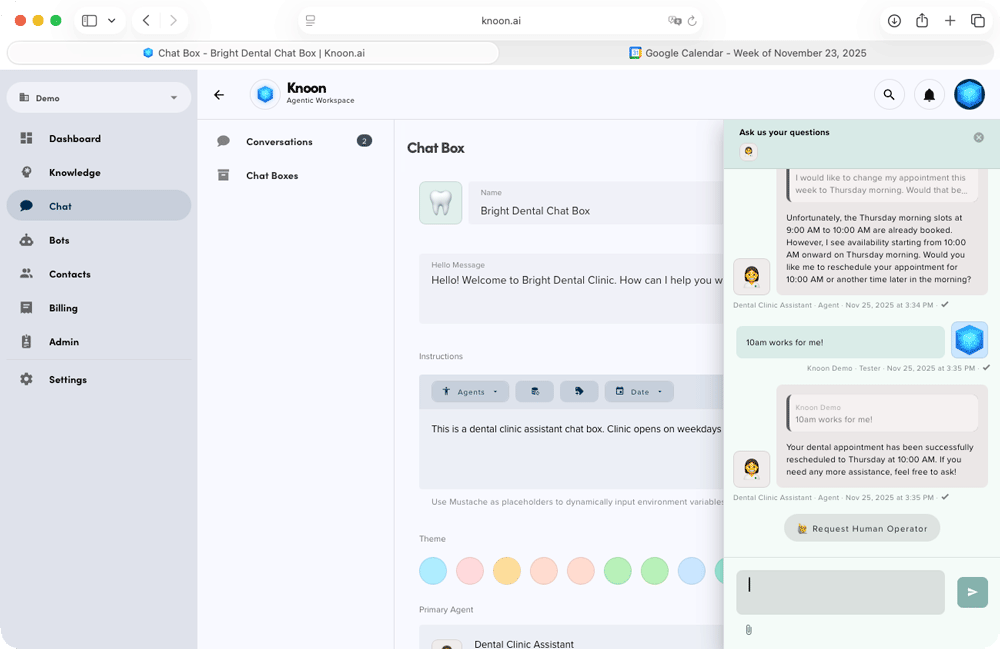
After we confirmed that 10 AM on Thursday works for us, the agent located the event ID and successfully updated the appointment to the new date and time.
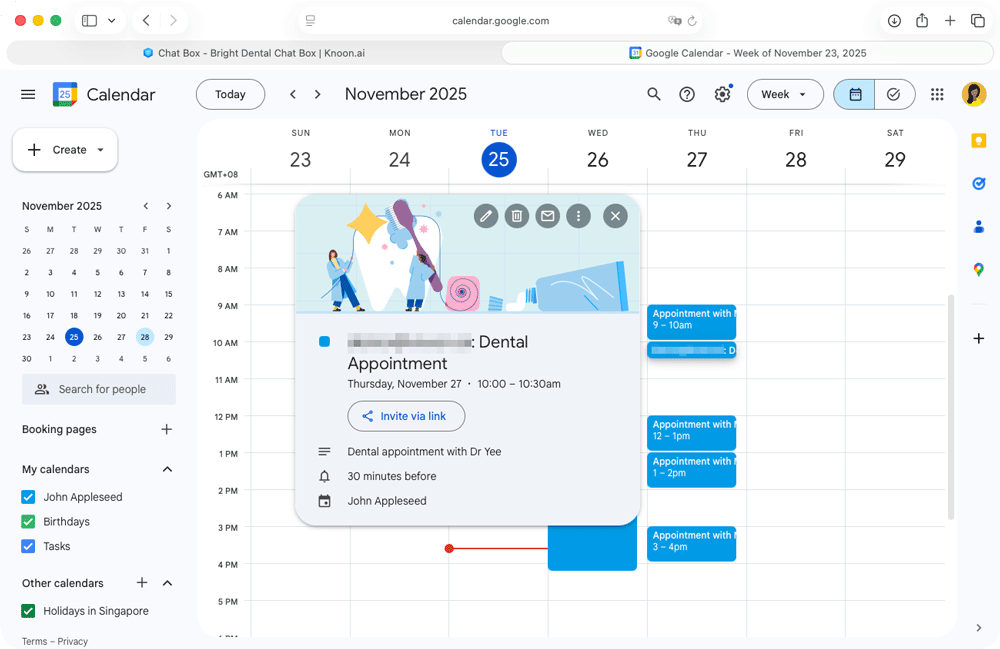
And just like that. No human intervention needed!
Cancel Appointment
Lastly, we tested appointment cancellation. In this scenario, the user had two appointments with Dr. Yee. We asked the agent to cancel all appointments for the week. The agent first clarified whether it should cancel a specific appointment or all of them.
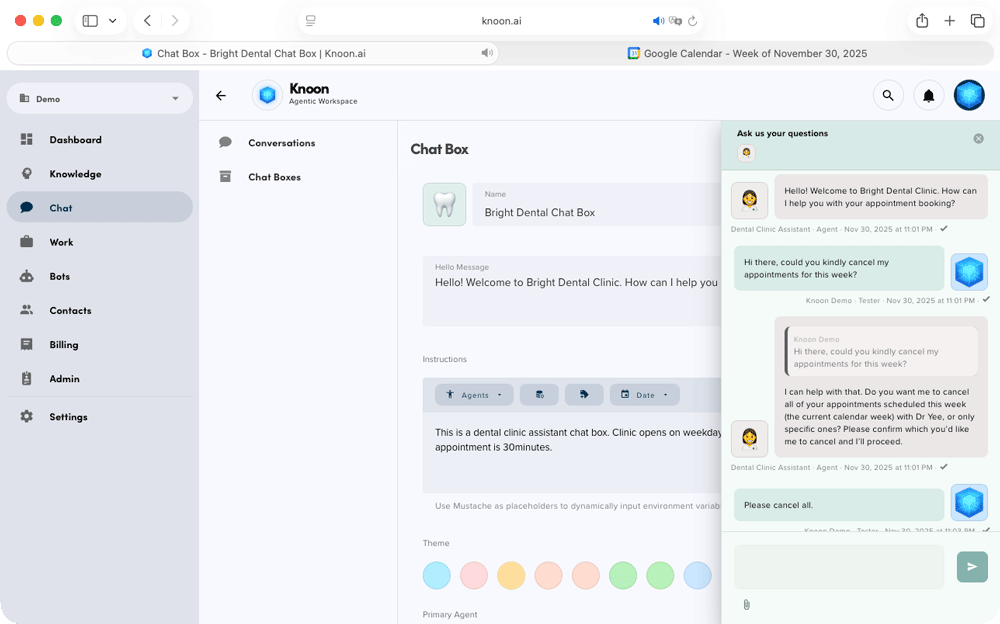
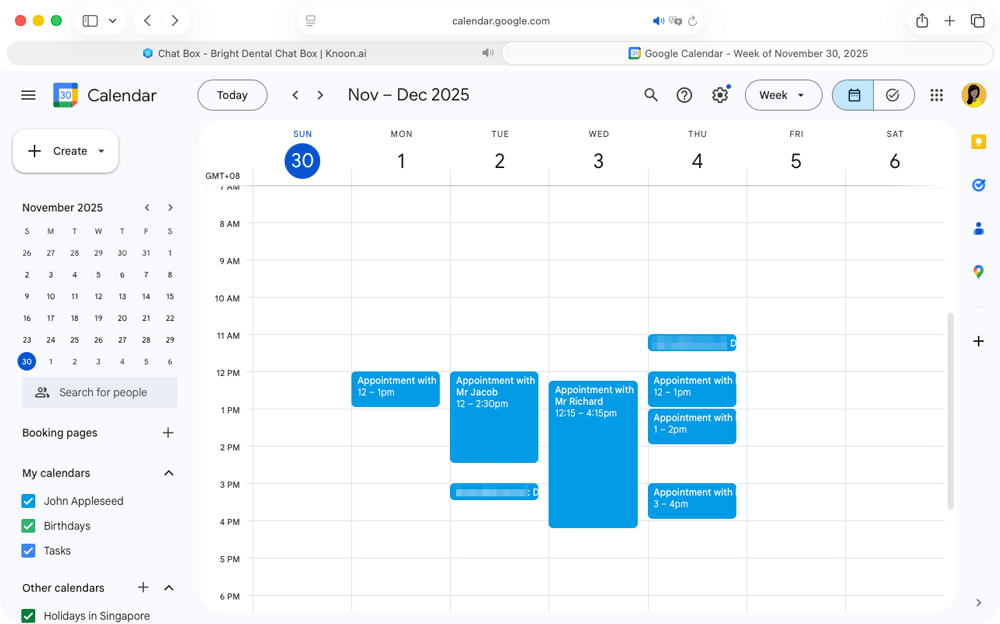
After the user confirmed, the agent located all events under the user’s email for that week and successfully cancelled them.
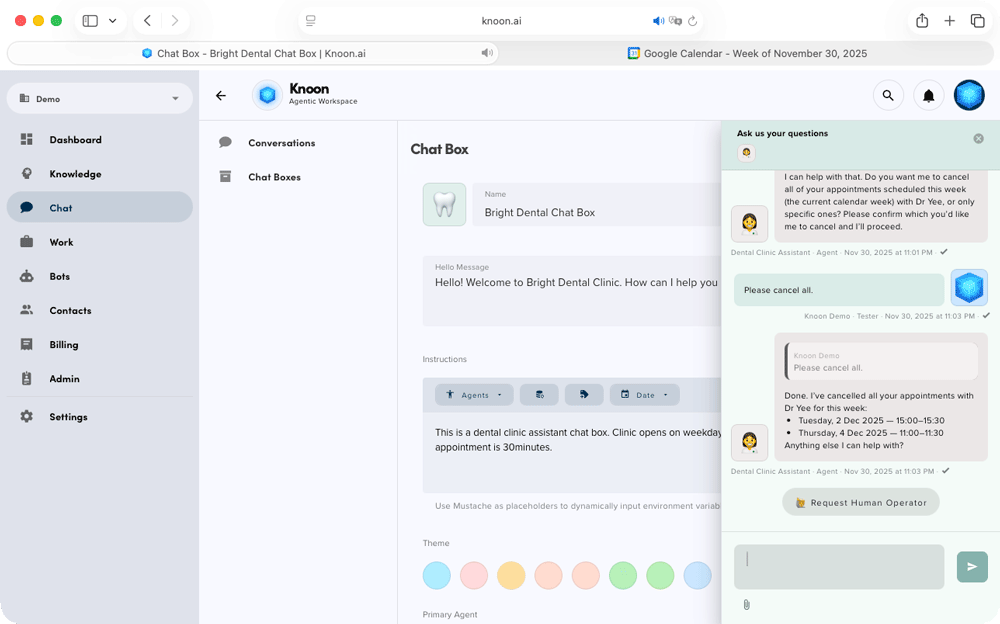
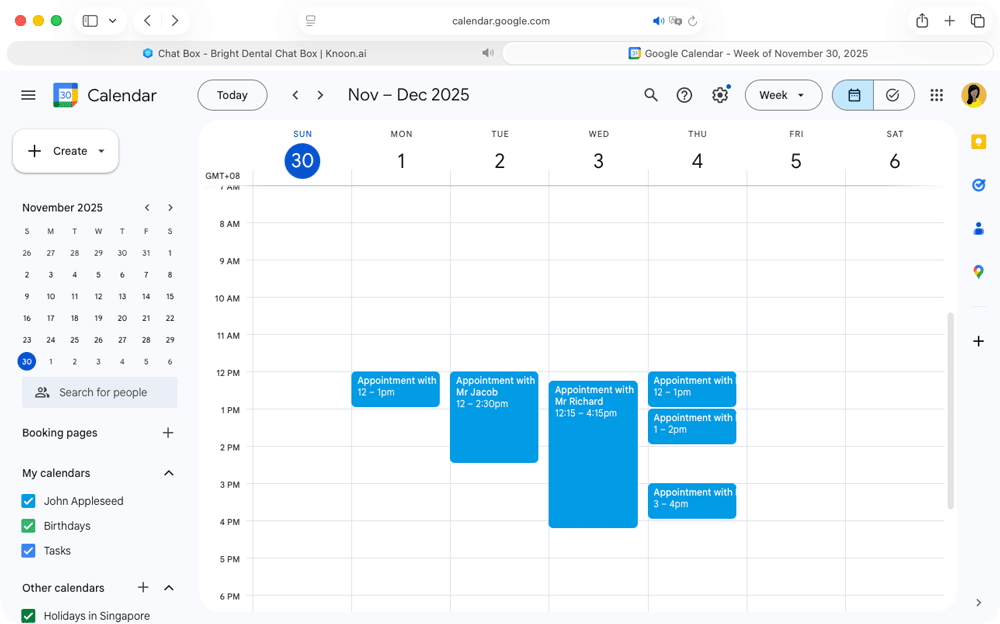
Yayyy! 👏🏻
By connecting Google Calendar to Knoon, your business transforms the way scheduling works. What used to be a time-consuming, manual process becomes an instant, automated workflow that responds to customers in real time, finding availability, booking appointments, and making updates without requiring your team to lift a finger.
Whether you run a clinic, salon, coaching practice, or any service-based operation, Knoon agents act as reliable scheduling assistants that work 24/7, reduce errors, prevent double bookings, and free your staff to focus on what truly matters: delivering great service.
With smart automation handling your calendars, you can scale effortlessly while providing a smoother, faster experience for your customers.