

Bring Agentic AI to Microsoft Bookings with Knoon’s Chat-Based Agents
Microsoft Bookings is a powerful appointment-scheduling tool for businesses that need structure and staff assignment such as clinics, salons, service teams, consultants, and more. But while Bookings makes scheduling easier, it still relies on human staff to manage requests, update appointments, assign the right team member, and communicate with customers.
With Knoon’s agentic AI, all of that becomes automated.
Knoon’s chat-based agents combine reasoning, planning, and real tool execution in Microsoft Bookings. This means your users can simply “talk” to your booking system, and the agent takes care of everything behind the scenes: finding availability, assigning staff, creating bookings, or making changes instantly.
What is Microsoft Bookings?
Unlike a simple calendar system such as Microsoft Outlook Calendar or Google Calendar, Microsoft Bookings has deeper scheduling logic:
- Each business (or location) has its own Bookings calendar
- Staff members are individually assigned
- Each staff has availability, services, roles, and working hours
- Appointments can involve multiple staff
- Bookings syncs automatically with Outlook calendars
This makes Microsoft Bookings ideal for complex scheduling scenarios but also harder for traditional chatbots to handle.
Knoon's Agentic AI changes that.
Knoon uses Agentic AI that can understand goals, make decisions, execute tools, and complete tasks. When connected to Microsoft Bookings, this means your customers can book appointments, change times, or ask questions through natural chat, and the agent autonomously handles the full workflow.
How to Create and Equip Microsoft Bookings Tool in Knoon
Create a Microsoft Bookings Tool
Here’s how to set up the Bookings integration in Knoon.
- Open Knoon.
- Go to Bots → Tools.
- Press Create.
- Enter a name and description for your tool.
- (Optional) Enable Provide alternative description to LLM for clearer instructions.
- Choose App as the Tool Type.
- Press Select an App Action.
- Pick Microsoft → Microsoft Bookings.
- Choose an action such as List Staff Members, List Booking Availability, Create Booking Appointment,Update Booking Appointment, Cancel Booking Appointment & more.
- Define your agent variables.
- Configure action payload if needed.
- Press Submit.
Attach the Tool to an Agent
- Go to Bots → Agents.
- Select an agent.
- Scroll to the Tools section.
- Select the Microsoft Bookings tool you created.
- Press Submit.
Your agent is now fully equipped to check availability, create appointments, and update events in Microsoft Bookings directly within conversations.
Demo Workflow: Booking Beauty Hair Salon Appointment via Microsoft Bookings
In this demo, we run a hair salon called Beauty, which has two stylists, Jeromy and Kenny. The salon manages its appointments through Microsoft Bookings, and uses Knoon to communicate with customers and handle all booking-related requests through chat.
Setup Microsoft Bookings Tool
To automate scheduling for this example clinic workflow, you will create 5 Microsoft Bookings tools:
- Check Availability (List Booking Availability)
- Create Appointment (Create Booking Appointment)
- Find Existing Appointment (Search Appointments)
- Preferred Stylist (List Staff Members)
- Update Appointment (Update Booking Appointment)
- Cancel Appointment (Cancel Booking Appointment)
Below is a step-by-step guide for setting up each tool.
Check availability of the hair salon appointment slots
- In the create a new tool page,
Name: Check availability of the hair salon appointment slots
Description: Check availability of the appointment slots before booking or updating of appointment. - Choose App as the Tool Type.
- Press Select an App Action.
- Pick Microsoft → Microsoft Booking → List Booking Availability.
- Select a booking business.
- Configure the agent variables.
Name:startDate
Description:Start date of the query in ISO8601.
Name:endDate
Description:End date of the query in ISO8601. - Configure the action payload.
startDate:{{startDate}}
endDate:{{endDate}} - Done!
Preferred Hair Stylist
- In the create a new tool page,
Name: Preferred Hair Stylist
Description: Choose a preferred stylist from the list of the staff members. - Choose App as the Tool Type.
- Press Select an App Action.
- Pick Microsoft → Microsoft Booking → List Staff Members.
- Select a booking business.
- Done!
Book an hair salon appointment
- In the create a new tool page,
Name: Book an hair salon appointment
Description: Create a hair salon appointment booking - Choose App as the Tool Type.
- Press Select an App Action.
- Pick Microsoft → Microsoft Booking → Create Booking Appointment.
- Select a booking business.
- Configure the agent variables.
Name:startDateTime
Description:This is the start date time in ISO 8601.
Name:endDateTime
Description:This is the end date time in ISO 8601.
Name:customerName
Description:The name of the customer
Name:staffMemberIDs
Description:The staffMemberID of the hairstylist staff members. - Configure the action payload.
startDateTime:startDateTime
endDateTime:endDateTime
customerName:customerName
customerEmailAddress:{{data.contact.email}}
staffMemberIDs:staffMemberIDs - Done!
Get existing appointment information
- In the create a new tool page,
Name: Get existing appointment information
Description: Get existing appointment information. - Choose App as the Tool Type.
- Press Select an App Action.
- Pick Microsoft → Microsoft Booking → Search Appointments.
- Select a booking business.
- Configure the agent variables.
Name:startDate
Description:Start date of the query in ISO8601.
Name:endDate
Description:End date of the query in ISO8601. - Configure the action payload.
startDate:{{startDate}}
endDate:{{endDate}}
customerEmail:{{data.contact.email}} - Done!
Update hair salon appointment
- In the create a new tool page,
Name: Update hair salon appointment
Description: Update booking appointment in the hair salon after confirming slot availability. - Choose App as the Tool Type.
- Press Select an App Action.
- Pick Microsoft → Microsoft Booking → Update Booking Appointment.
- Select a booking business.
- Configure the agent variables.
Name:appointmentId
Description:The appointmentId of the appointment to be updated.
Name:startDateTime
Description:Start date time of the appointment in ISO8601.
Name:endDateTime
Description:End date time of the appointment in ISO8601.
Name:staffID
Description:This is the staffID. - Configure the action payload.
appointmentID:appointmentID
startDateTime:start-time
endDateTime:end-time
matchedCustomerEmailAddress:{{data.contact.email}}
staffID:staffID - Done!
Cancel hair salon appointment
- In the create a new tool page,
Name: Cancel a hair salon appointment.
Description: Cancel a hair salon booking appointment. - Choose App as the Tool Type.
- Press Select an App Action.
- Pick Microsoft → Microsoft Booking → Cancel Booking Appointment
- Select a business booking.
- Configure the agent variables:
Name:appointmentID
Description:This is the appointmentID to be cancelled.
Name:reasonOfCancellation
Description:State the reason(s) to cancel the appointment. - Configure the action payload.
appointmentID:{{appointmentId}}
matchedCustomerEmailAddress:{{data.contact.email}}
cancellationMessage:{{reasonOfCancellation}} - Done!
Once the tools are setup, attach them to an agent and test its response.
Ask the agent to book a 1 PM slot next week with stylist Kenny
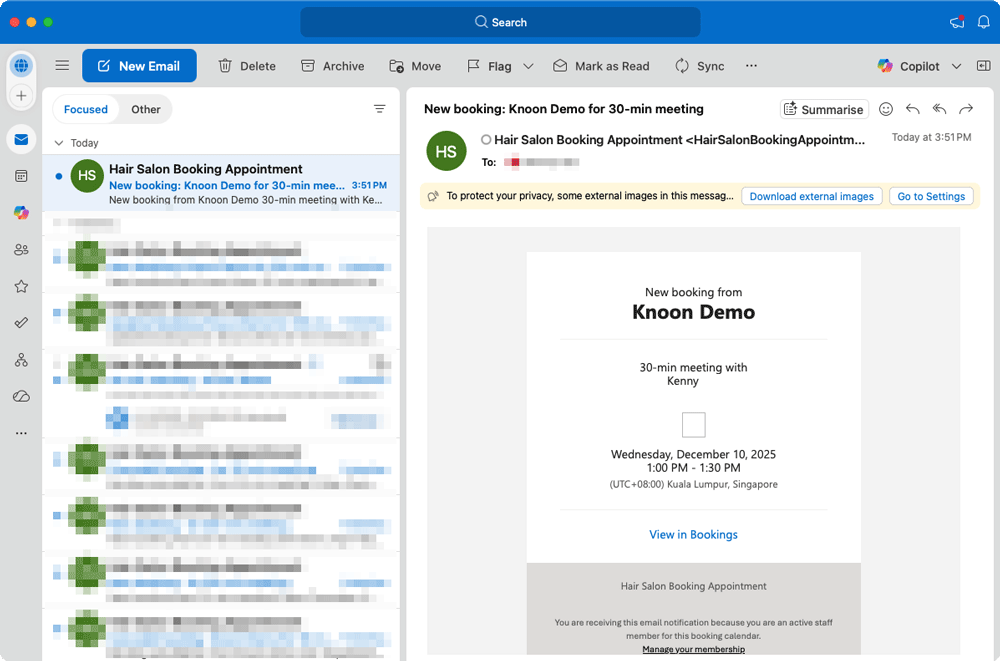
We asked the agent to book a 1 PM appointment next week with stylist Kenny. The agent checked Kenny’s schedule and confirmed that he was available Monday through Friday from 9 AM to 5 PM, meaning a 1 PM slot was open on any weekday.
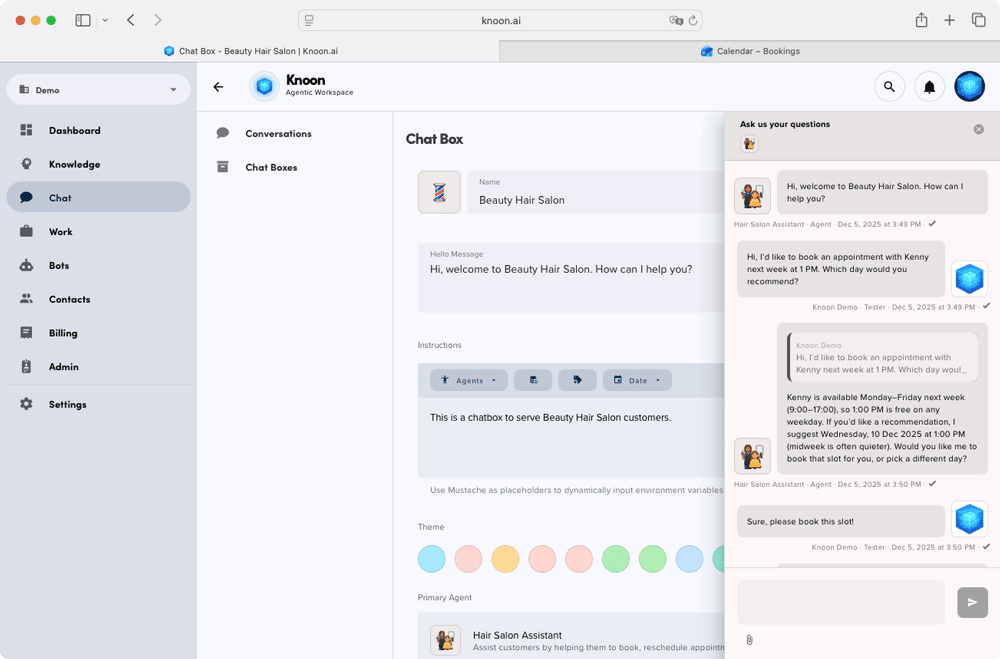
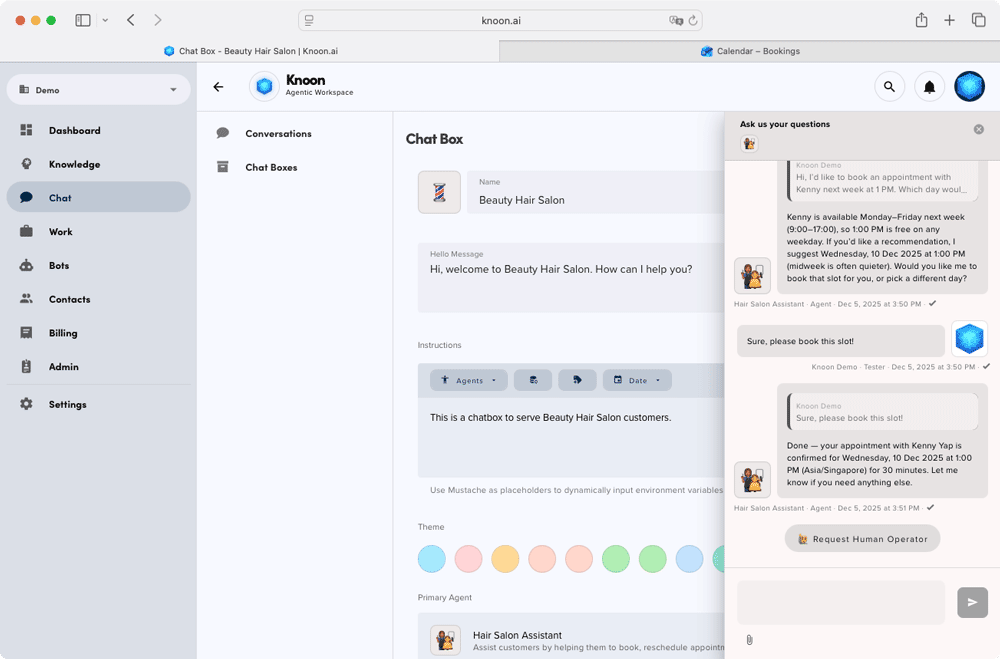
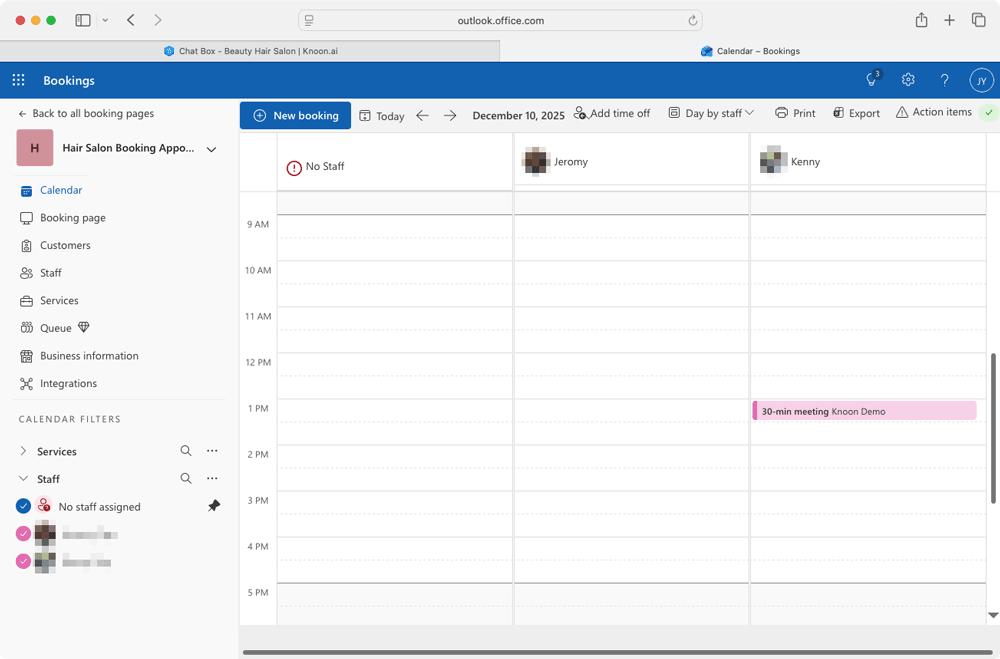
It then suggested a quieter midweek option: Wednesday, 10 December 2025 at 1 PM. After we confirmed the choice, the agent proceeded to create the booking, and the appointment with Kenny was successfully scheduled.
Change appointment to another date and time
We then asked the agent to check whether an appointment was scheduled for the following week, and if so, to reschedule it to Monday at 1 PM with the same stylist. The agent located the existing booking on Wednesday, 10 December 2025 at 1 PM, and reviewed the stylist’s availability for the requested time. It found that Kenny, the current stylist, was not available at 1 PM on Monday, but identified that another stylist, Jeromy, was free.

The agent provided clear options:
- Switch to Monday at 1 PM with Jeromy, keep the original Wednesday appointment
- Explore different times
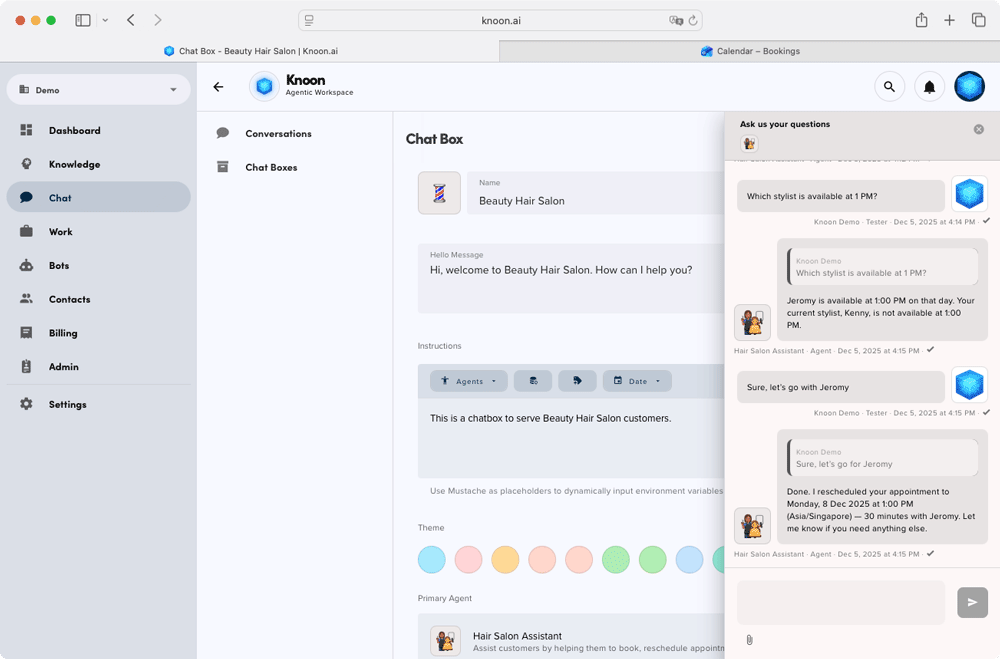
After confirming that Jeromy was acceptable, the agent retrieved the event details and updated the appointment to the new date and time.
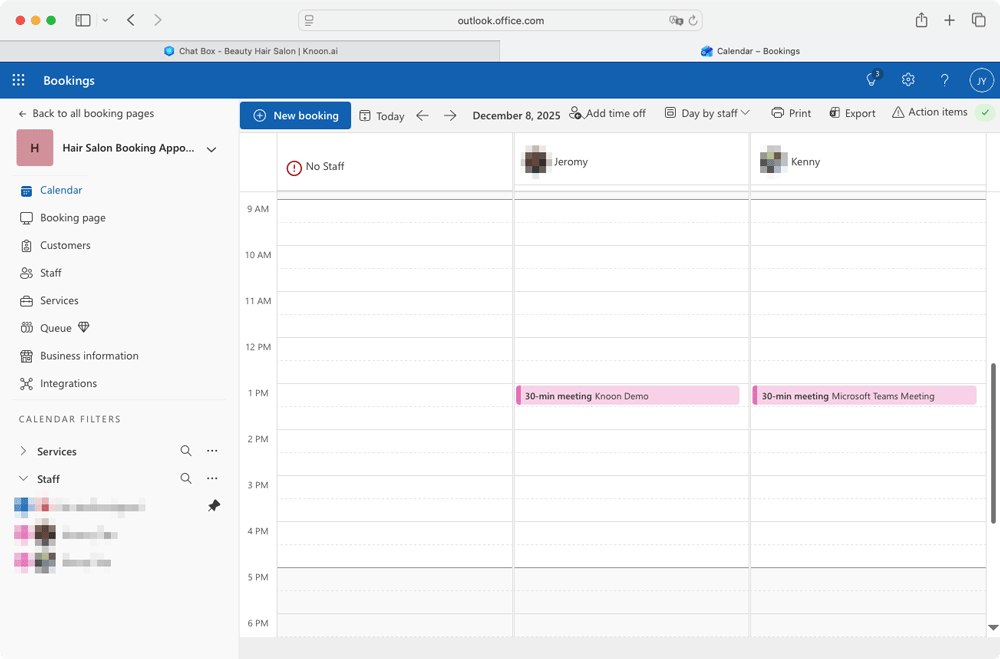
The appointment was successfully rescheduled to Monday, 8 December 2025 at 1 PM for 30 minutes with Jeromy.
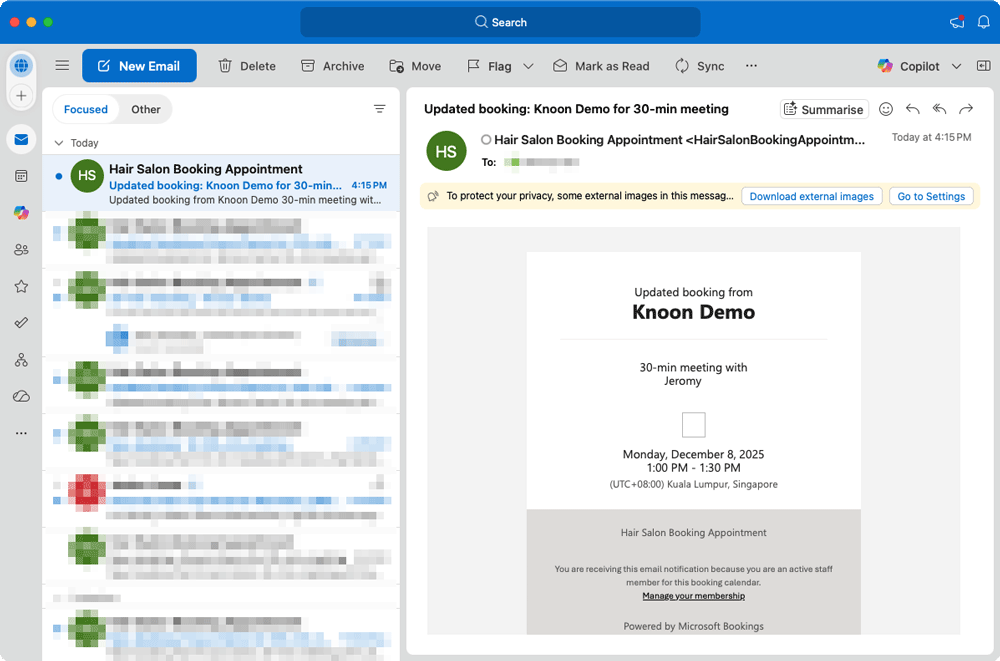
And just like that, the entire adjustment was handled automatically, with no manual coordination required.
Cancel Appointment
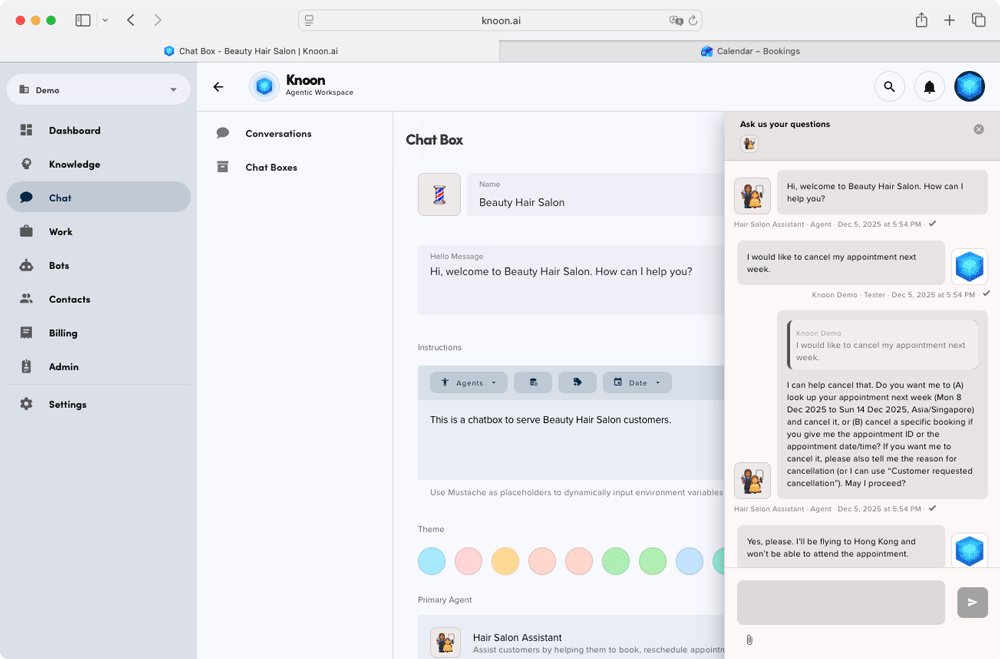
Finally, we tested appointment cancellation. The user requested to cancel their appointment for the following week. The agent began by confirming whether it should look up any appointment scheduled between Monday, 8 December and Sunday, 14 December, or cancel a specific booking if an appointment ID or exact time was provided. It also asked for a reason to record for the cancellation.
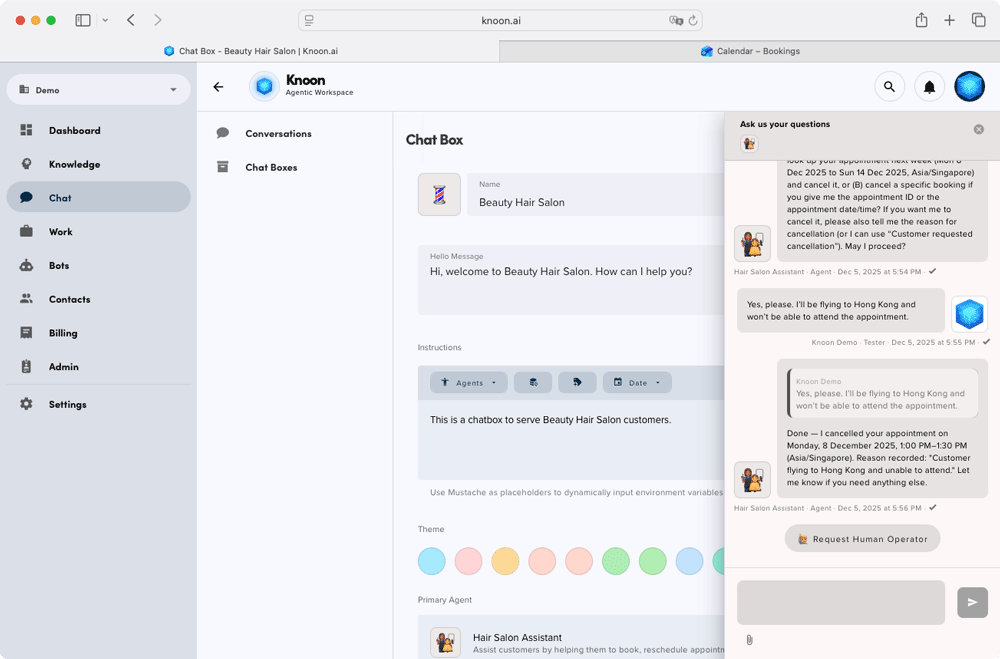
After the user explained that they would be flying to Hong Kong and unable to attend, the agent searched for the upcoming appointment and identified the booking on Monday, 8 December at 1 PM. It then proceeded to cancel the appointment and recorded the provided reason.
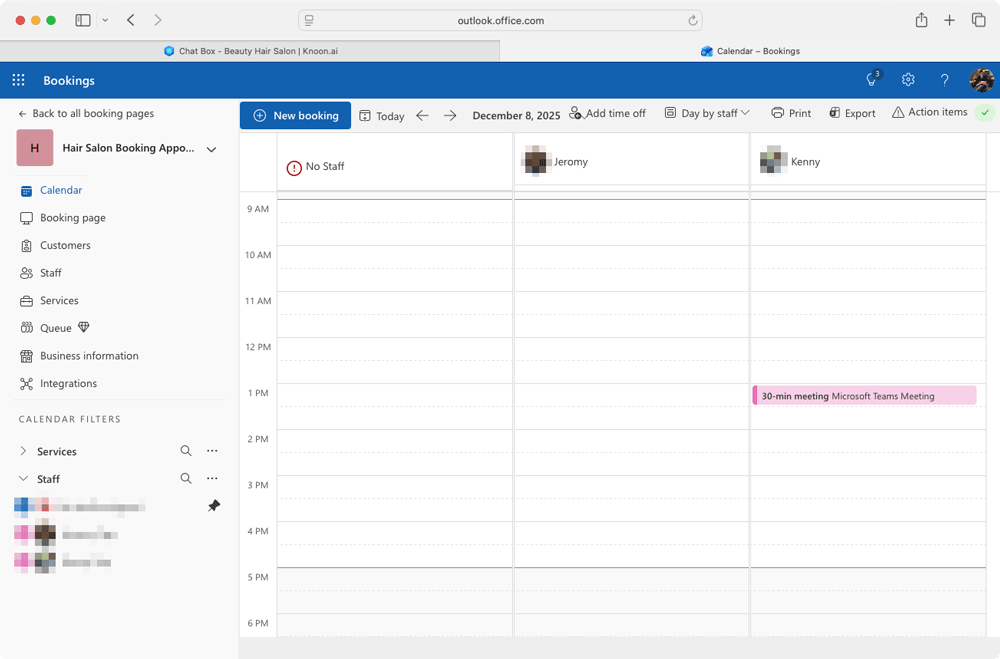
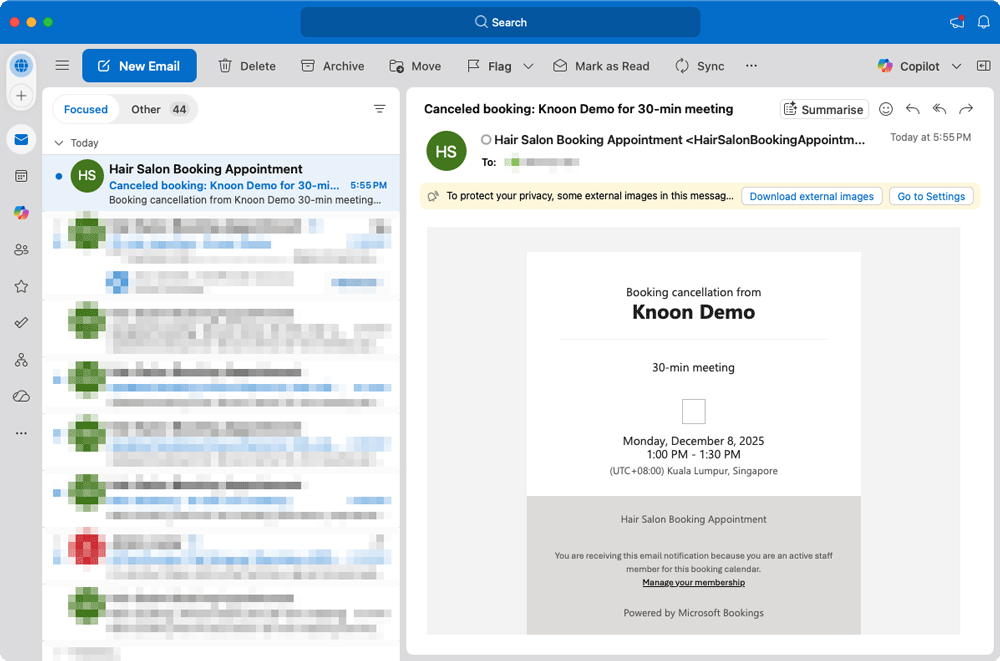
The appointment was successfully removed from the calendar, completing the entire process automatically.
Yayyy! 👏🏻