

Introducing Work Box in Knoon

We’re excited to introduce Work Box! Work Box is a core building block in Knoon that makes it easy to design, run, and manage agent-powered workflows. It allows founders and product managers to focus on what needs to be done, while Knoon handles how agents coordinate behind the scenes.
What is a Work Box?
A Work Box is a container for running work asynchronously in the background using AI agents. Each Work Box defines what needs to be done, which agents are involved, and how the work should be executed.
Instead of relying on a single AI agent, Work Box enables coordinated, multi-agent execution with optional human involvement.
Each Work Box consists of:
Primary AI Agent
The coordinator that plans the task, decides which agents to use, and controls the execution flow.
Multiple Secondary AI Agents
Specialized agents that perform specific tasks, such as research, writing, translation, or data processing.
Instructions & Output Rules
Clear guidance on expected outputs, such as format requirements (e.g. CSV, JSON, or text).
Once started, a work runs asynchronously in the background and can be monitored from the Works page.
Knoon's AI Work Box VS Traditional Workflows
Traditional workflow tools like N8N rely on fixed, node-based logic and require explicit configuration or coding.
Knoon's Work Box takes a different approach.
Work Box is instruction-driven and uses natural language instead of code or visual wiring. You describe what you want, and a Primary coordinating AI agent decides how the work should flow, which agents to use, and in what order.
Because the flow is decided dynamically by the coordinating agent, Work Box is well suited for adaptive, creative, and reasoning-based tasks without requiring any coding.
Built for Human-in-the-Loop Workflows
Some decisions require human input. As such, we designed Work Box to support human interaction and intervention, such as:
- Pausing work that requires review or approval
- Requesting human input before continuing
- Resuming execution once feedback is provided
This makes Work Box ideal for critical workflows that involve decision-making.
How to Create & Run a Work Box
Imagine you want to create a blog writing workflow from brainstorming ideas, doing SEO analysis, writing the article, all the way to preparing it for publishing. A Work Box is designed exactly for this kind of end‑to‑end, multi‑step work.
In this example, the goal is to create a blog post that:
- Brainstorms article ideas
- Performs SEO keyword analysis
- Writes the blog content
- Prepares the final draft for publishing to Ghost Blog
All of this will be handled inside a single Work Box.
Step 1: Create a Work Box
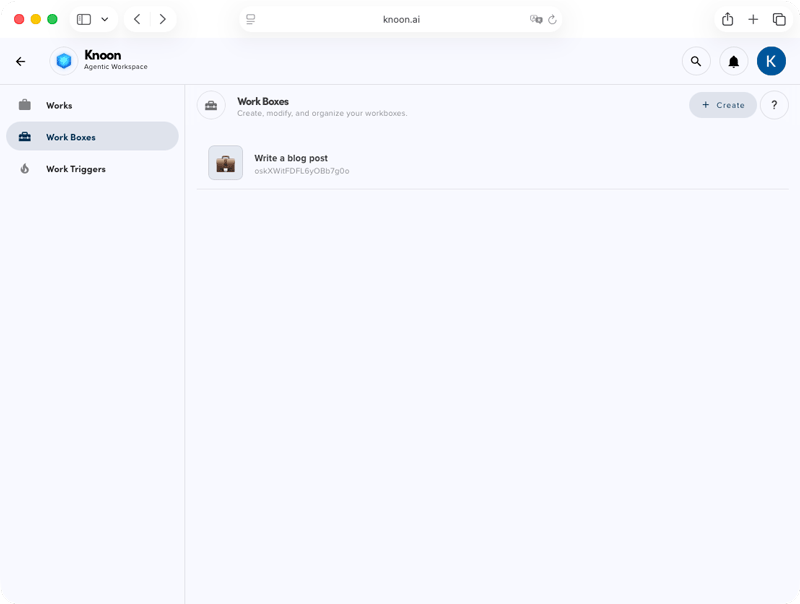
- Go to Work > Work Boxes
- Click Create Work Box
- Give your Work Box a name, for example: Write a blog post
Step 2: Define the Work Instructions
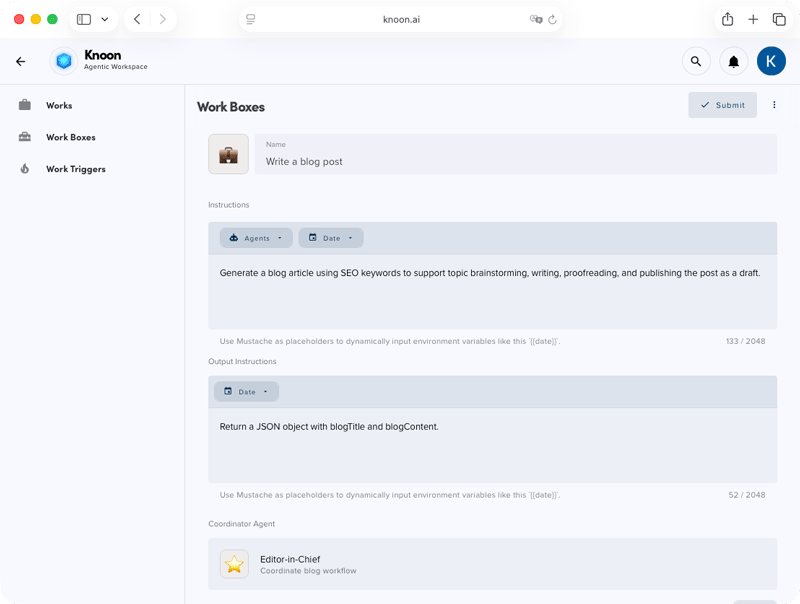
In the Instructions section, describe the task clearly. Clear instructions help the coordinating agent understand the full scope of work.
Step 3: Configure Output Instructions
Output instructions define what the final result should look like. If output instructions are provided, the final result will appear in the Output section of the Work window.
Step 4: Assign or Enable Agents
Depending on your setup, different agents may handle different parts of the workflow, such as:
- Ideation agent brainstorming topics
- SEO agent keyword research and analysis
- Writing agent drafting the article
- Publishing agent to publish the article to Ghost Blog
- Coordinator agent managing flow and quality
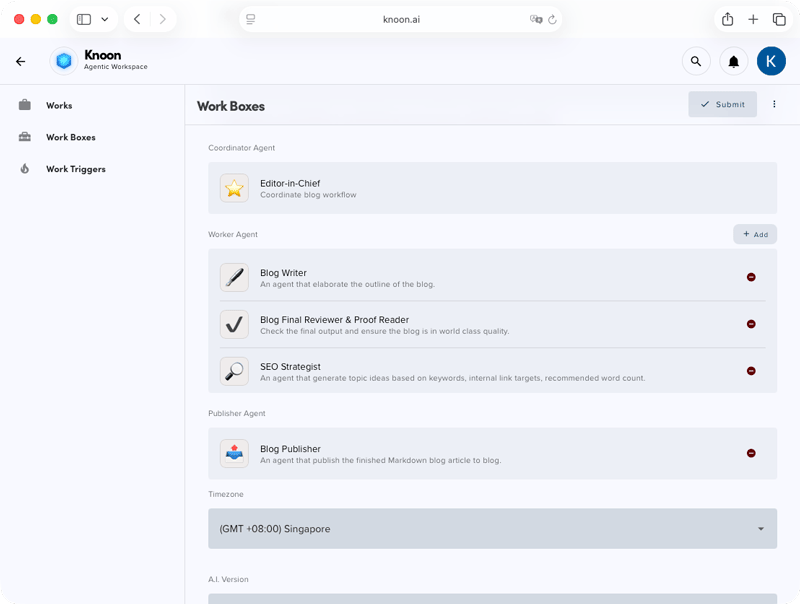
Each agent should be equipped with the right tools for its role. For instance, an ideation agent may use tools like SerpAPI and Firecrawl to identify top-ranking pages for a target keyword, extract relevant content, and generate informed blog ideas.
The coordinating agent orchestrates the process, ensuring tasks are executed in the correct order and that outputs from one agent are passed smoothly to the next.
Step 5: Run the Work Box
Starting a work is intentionally simple. From the Works page, click Start to initiate a new work. A chat field will appear, where you brief the agents on what needs to be done. Use this space to provide the goal, relevant context, and any constraints such as requirements and scope. Clear instructions help agents plan and execute more effectively.
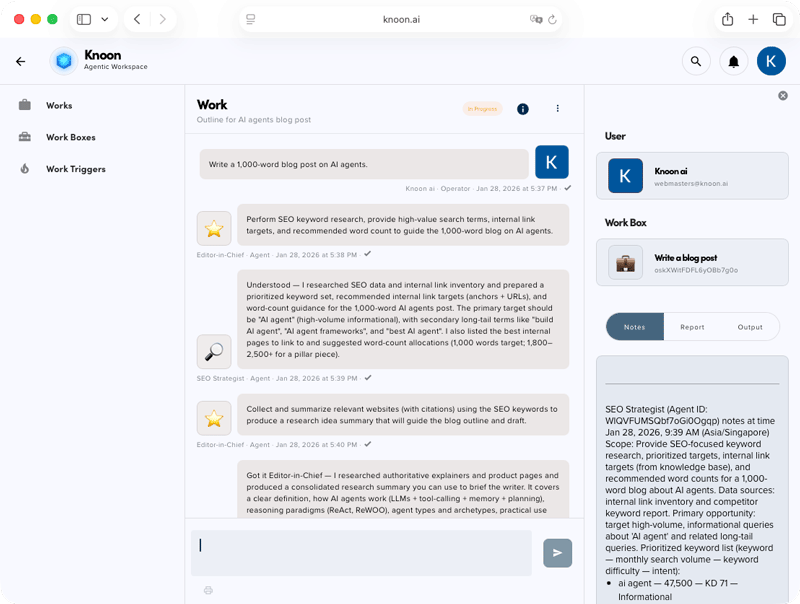
After you send the message, the agents begin executing the work step by step. The coordinating agent breaks the task into smaller actions and assigns them to the appropriate specialized agents.
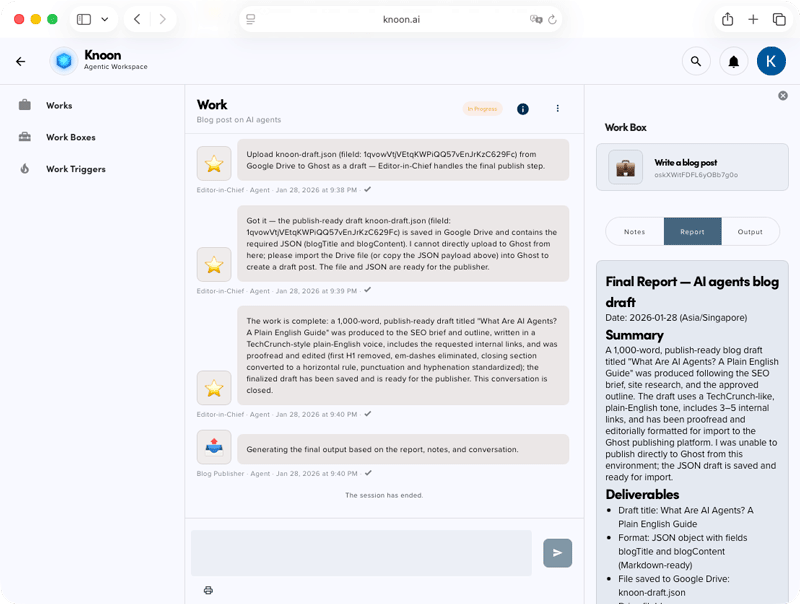
As the work runs, you can observe progress in real time. The Work window shows current progress, intermediate outputs, and agent activity, giving you full visibility into how the work is unfolding. You can monitor, clarify, or stop the work at any time.
Step 6: Review the Results
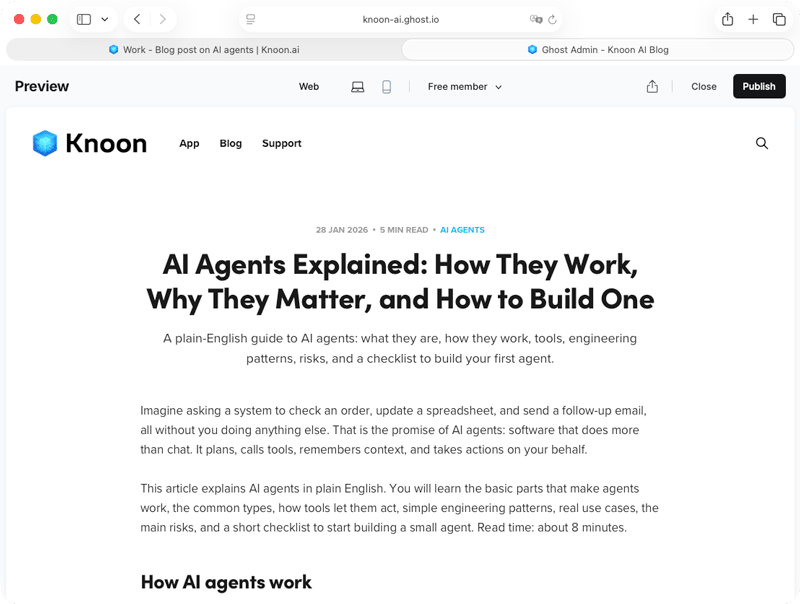
Once complete, the final blog post is published to the Ghost Blog. The coordinating agent delivers a consolidated report summarizing what was done, how it was done, and the outcome.
Work Box represents a new way of thinking about how work gets done with AI. Instead of stitching together rigid workflows or managing individual agents, Work Box gives you a single, flexible container where agents collaborate, adapt, and execute tasks intelligently.
By combining instruction-driven execution, multi-agent coordination, and built-in human-in-the-loop controls, Work Box makes it possible to automate complex, end-to-end workflows without writing code. You stay focused on defining outcomes and making decisions, while Knoon handles planning, execution, and coordination behind the scenes.
Whether you are generating content, running research, managing operational tasks, or supporting critical decision-making workflows, Work Box provides the structure, visibility, and control needed to turn complex work into repeatable, reliable processes.
This is just the beginning. As you build more Work Boxes, you’ll discover how easily AI-powered workflows can scale across your team and your business with Knoon.