

Introducing Stripe Support in Knoon: Automate Payments, Disputes, and Reports with AI Agents

Managing payments is important for every business. But using Stripe every day can be tiring. You jump between customers, subscriptions, payments, disputes, and reports. This turns into busy work. Tasks get delayed. Data is checked by hand. Disputes become stressful.
Today, we are introducing Stripe support in Knoon.
With Knoon’s AI agents, you can automate many Stripe tasks. You can manage customers, subscriptions, disputes, fraud reviews, and reports without writing code. In this article, we will walk you through what Stripe can do in Knoon.
How Knoon Supports Your Stripe Workflows
Knoon is built around the idea of agentic AI. You create specialized AI agents, give them tools, and let them coordinate work inside a workflow (what we call a Work Box).
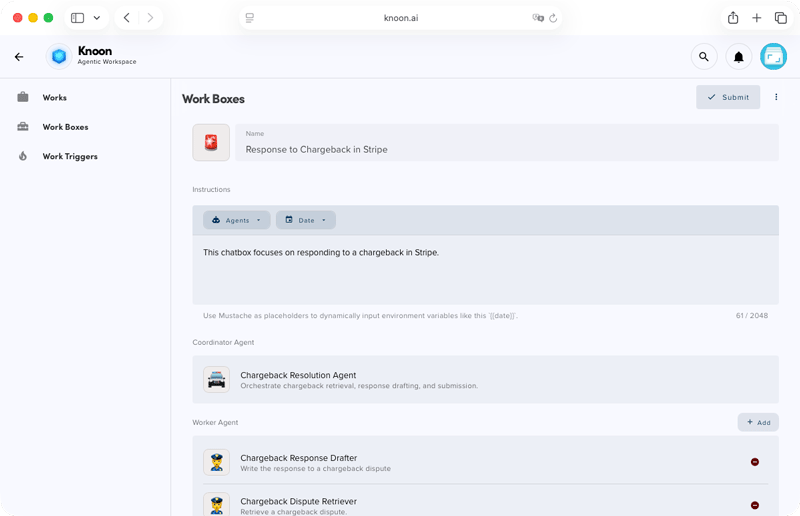
With Stripe support, your agents can now:
• Fetch and analyze data from Stripe
• Draft responses or summaries
• Prepare dispute evidence
• Generate reports
• And keep your team in the loop when human input is needed
This means you no longer need to handle Stripe tasks in browser tabs or spreadsheets. You can run them as simple and reliable workflows in your organization.
What You Can Do with Stripe in Knoon
Knoon now supports a wide range of Stripe actions across customers, subscriptions, products, payments, disputes, and financial objects. Here are some of the key areas you can automate:
1. Customer & Subscription Management
Your agents can:
- Retrieve and update customers
- List customers or search customers by email or query
- List subscriptions by customer
- Search subscriptions
- Retrieve subscriptions and check their status and billing periods
Example workflow:
A “Billing Ops Agent” checks for customers with failed payments, pulls their subscriptions, summarizes the issue, and prepares a follow-up message for your support team to review.
2. Payments, Transactions & Products
Your agents can:
- List transactions (optionally filtered by customer)
- Retrieve and list products
- Search products
- Work with coupons and promotion codes (list and retrieve)
- Retrieve and list shipping rates
Example workflow:
A “Finance Agent” runs a daily job that pulls the latest transactions, groups them by product, and generates a simple revenue summary for your team.
3. Credits, Credit Notes & Line Items
Your agents can:
- Retrieve credit notes
- List credit notes
- List credit note line items
Example workflow:
When a refund or adjustment is issued, an agent can fetch the credit note, summarize what changed, and post a clear explanation into your internal channel.
4. Disputes, Fraud & Radar Reviews
Your agents can:
- List disputes and retrieve a dispute
- Update a dispute with new evidence or metadata
- Close a dispute
- List issuing disputes, retrieve them, update them, create them, and submit them
- Retrieve and list early fraud warnings
- Retrieve and list Radar reviews
- Approve Radar reviews
Example workflow:
A “Dispute Coordinator Agent” monitors new disputes, gathers the related transaction and customer details, asks another agent to draft the evidence summary, and then prepares everything for submission, with a human-in-the-loop approval step before sending.
5. Financial Accounts & Treasury Objects
Your agents can also:
- Retrieve financial accounts
- List financial accounts
Example workflow:
A “Reporting Agent” pulls financial account data at the end of the week and generates a short operational snapshot for your finance team.
How to Create Stripe Workflow in Knoon
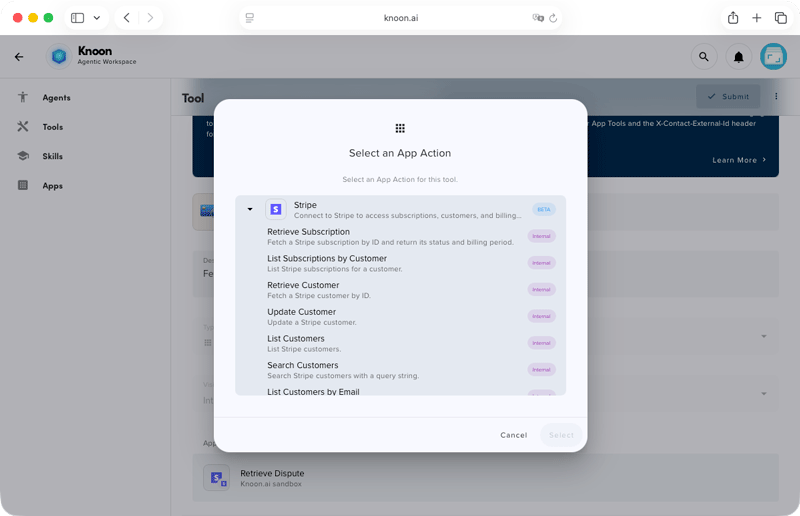
To create a Stripe tool in Knoon:
- Go to Bots > Tools > Create.
- Set the visibility to Internal.
- Select Stripe and install the app.
- Enter your API key.
- Configure the tools you need.
- Click Submit to save.
Once the Stripe tool is ready, you can:
- You create your agents (for example: Billing Ops Agent, Dispute Agent, Reporting Agent)
- You connect them in a Work Box
You run the workflow and let the agents do the busy work
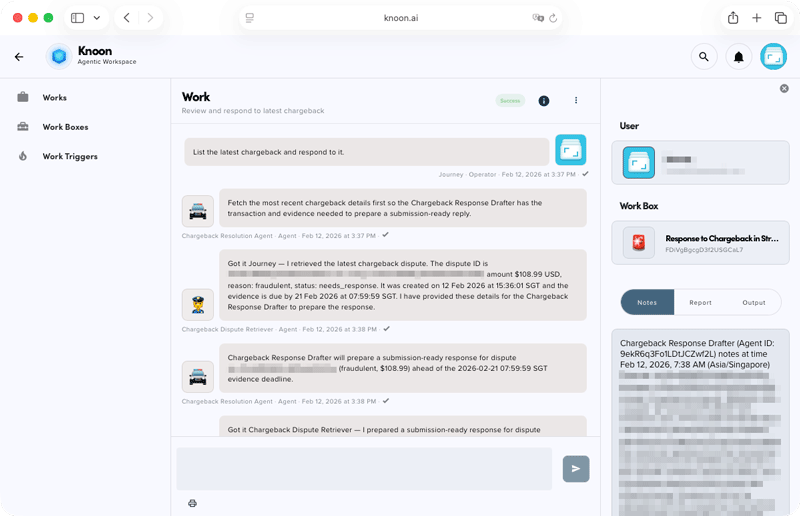
With Stripe support in Knoon, you can build powerful workflows in just minutes. You can automate dispute handling, create revenue and transaction reports, check customer and subscription health, review fraud cases, and run finance and operations reports.
And because this is Knoon, you stay in control. You can pause any workflow, ask for human input, or request approval whenever needed.
Stripe is now part of Knoon’s growing ecosystem of AI-powered tools. If your team deals with payments, subscriptions, disputes, or financial operations, this is one of the fastest ways to take work off your plate. Let your AI agents handle Stripe, so your team can focus on building your business.