

How I Automated 6 Hours of Monthly Bookkeeping in 30 Minutes Using AI Agents

Bookkeeping is mundane work every company needs to do. It’s repetitive.
Every time a receipt comes in, the process is the same:
- Download the PDF
- Open QuickBooks
- Create the expense/invoice
- Select the vendor/customer
- Choose the correct account
- Apply tax code
- Attach the file
- Upload it to OneDrive
Four minutes.
That doesn’t sound like much. Until you do it 100 times a month. That’s roughly six to seven hours gone every month!
So I decided to test something.
What if I could automate the repetitive part of bookkeeping in under 30 minutes using AI agent?
Automating Bookkeeping with Knoon AI Agents
Instead of looking for another automation tool or writing custom scripts, I opened Knoon.
Knoon is an agentic platform that lets you create agents and allow them to work together without building complex workflows. No code is required. That was important to me because I do not know how to code.
I also did not want to connect APIs, configure automation rules, or stitch multiple tools together manually. I just wanted to describe what needed to happen and let the agents execute it.
My goal was clear. When a receipt is uploaded or forwarded, it should automatically:
- Knoon agent reads the PDF
- Extract vendor/customer, date, and amount
- Determine whether it’s an expense or invoice
- Apply the correct account and tax code
- Create the transaction in QuickBooks
- Upload the original file to OneDrive
How I Built a Bookkeeping Automation
Using Knoon, I created a Workbox to handle invoice and receipt processing. Instead of building one giant automation, I split responsibilities across 3 agents.
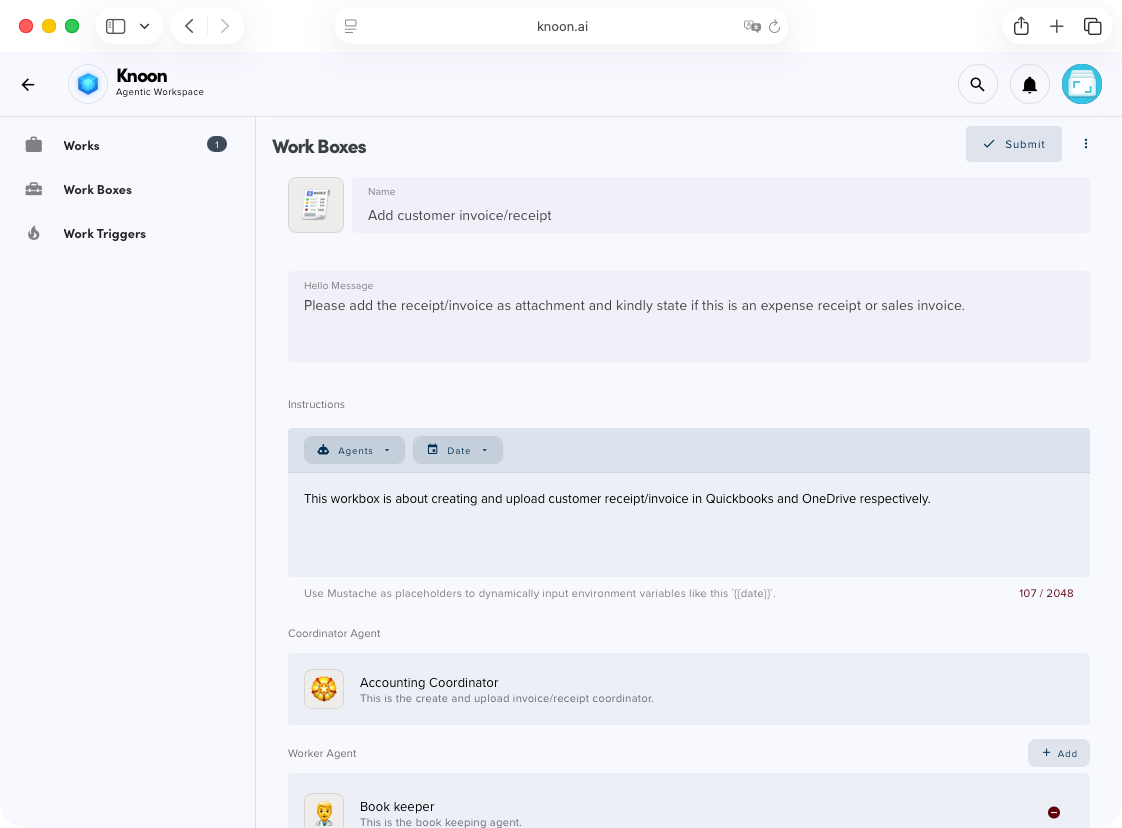
Accounting Coordinator
This agent orchestrates the workflow. It decides what needs to happen and in what order.
Book Keeper Agent
This one reads the PDF, extracts structured data, determines the right expense category, applies tax codes, and creates the transaction in QuickBooks.
Uploader Agent
After the expense is recorded, it uploads the original document to OneDrive.
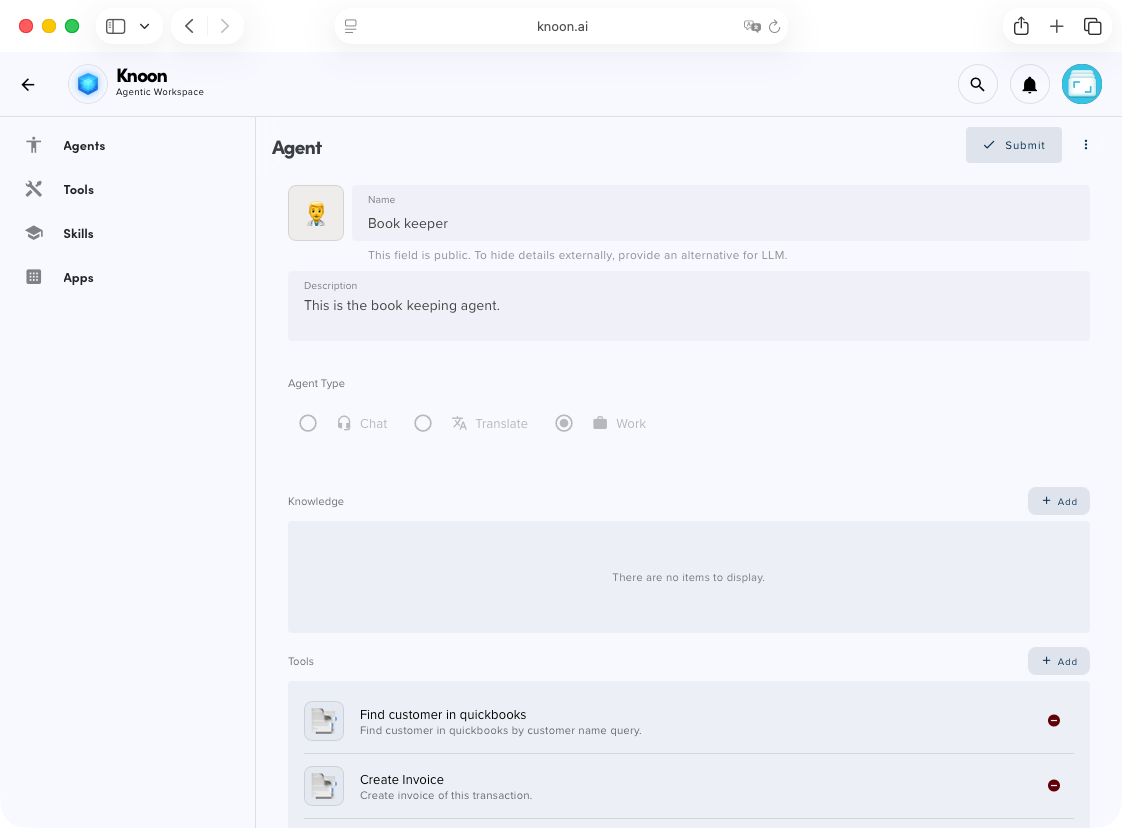
Then I connected the necessary tools:
- QuickBooks (vendor lookup, customer lookup, find accounts, find tax codes, create receipt, and create invoice)
- OneDrive (file upload)
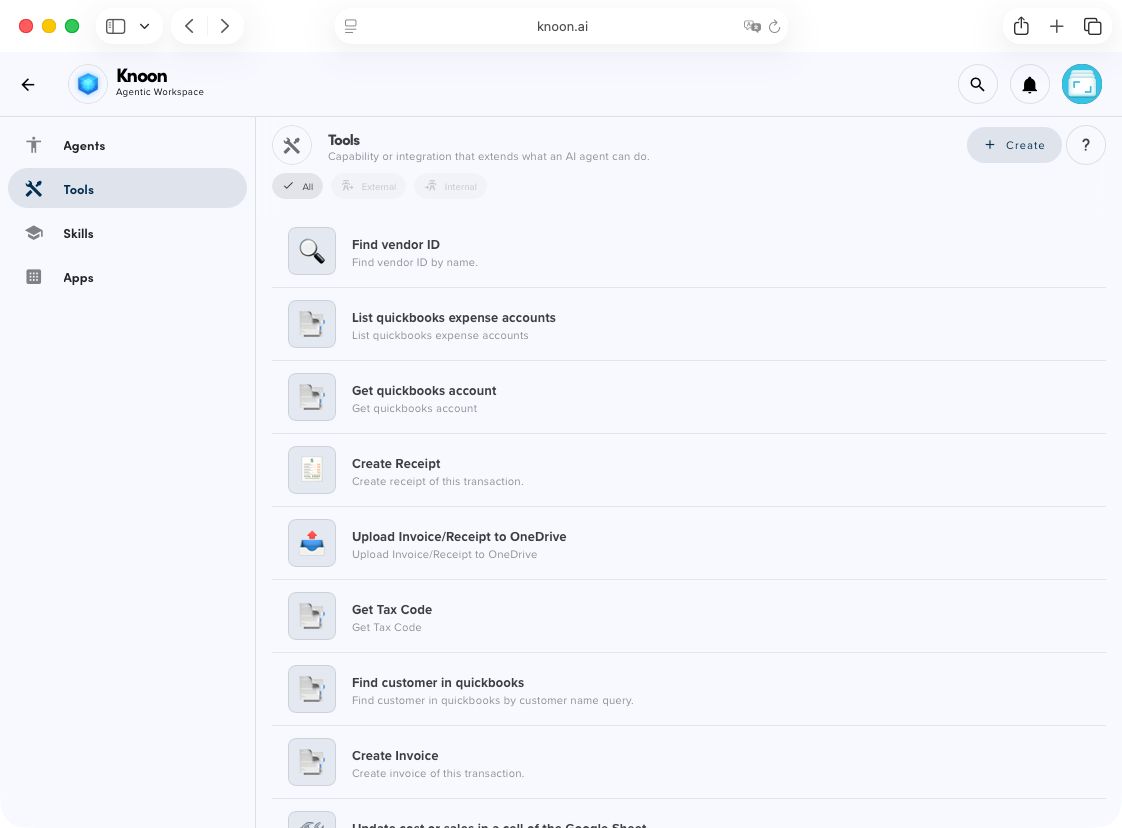
Query Vendor
This tool finds the vendor ID based on the vendor name. No agent variable is required.
Query Customer
This tool finds the customer ID based on the customer name. No agent variable is required.
Query Accounts
Accounts can be bank accounts, expense accounts, and more. This tool automatically selects the most relevant account based on the invoice or receipt. No agent variables are needed.
Query Tax Codes
This tool selects the most relevant tax code based on the invoice or receipt.
Create Invoice
This tool creates an invoice in QuickBooks. At minimum, the agent must provide the following variables: Customer ID, Amount, Description, and Tax Code Reference.
In the customerID field, pass the Customer ID variable.
In the payloadJson field, construct the QuickBooks JSON payload as shown below.
Create Receipt
This tool creates an invoice in QuickBooks. At minimum, the agent must provide the following variables: Account ID, Date, Description, Amount, Tax Code Reference, Expense Account ID, Vendor ID, Vendor Name, and Order Number.
In the accountID field, pass the Account ID variable.
In the payloadJson field, construct the QuickBooks JSON payload as shown below.
QuickBooks JSON payload for create invoice:
{
  "CustomerRef": {
    "value": "{{agentVariable.customerID}}"
  },
  "Line": [
    {
      "DetailType": "SalesItemLineDetail",
      "Amount": {{agentVariable.amount}},
      "Description": "{{agentVariable.description}}",
      "SalesItemLineDetail": {
        "ItemRef": {
          "value": "1"
        },
        "Qty": 1,
        "UnitPrice": {{agentVariable.amount}},
        "TaxCodeRef": {
          "value": "{{agentVariable.taxCodeRef}}"
        }
      }
    }
  ],
  "TxnTaxDetail": {
    "TxnTaxCodeRef": {
      "value": "{{agentVariable.taxCodeRef}}"
    }
  }
}
QuickBooks JSON payload for create receipt:
{
  "TxnDate": "{{agentVariable.date}}",
  "PaymentType": "Cash",
  "DocNumber": "{{agentVariable.orderNumber}}",
  "AccountRef": {
    "value": "{{agentVariable.accountID}}"
  },
  "EntityRef": {
    "name": "{{agentVariable.vendorName}}",
    "value": "{{agentVariable.vendorID}}"
  },
  "Line": [
    {
      "DetailType": "AccountBasedExpenseLineDetail",
      "Amount": {{agentVariable.amount}},
      "Description": "{{agentVariable.description}}",
      "AccountBasedExpenseLineDetail": {
        "AccountRef": {
          "value": "{{agentVariable.expenseAccountId}}"
        },
        "TaxCodeRef": {
          "value": "NON"
        }
      }
    }
  ]
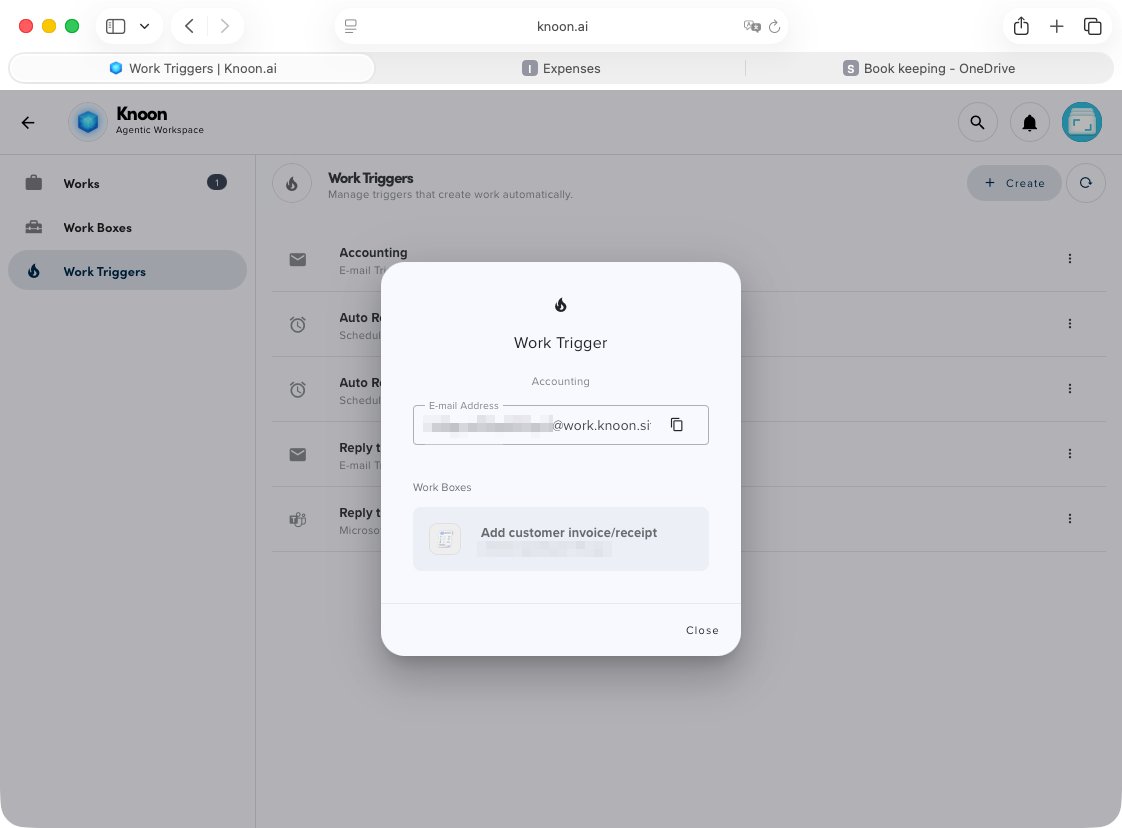
}Next, I configured the Workbox to be triggered by email. Knoon generated a unique email address, so any receipt or invoice I forward to that address automatically activates the workflow.
How the AI Agents Executed the Workflow
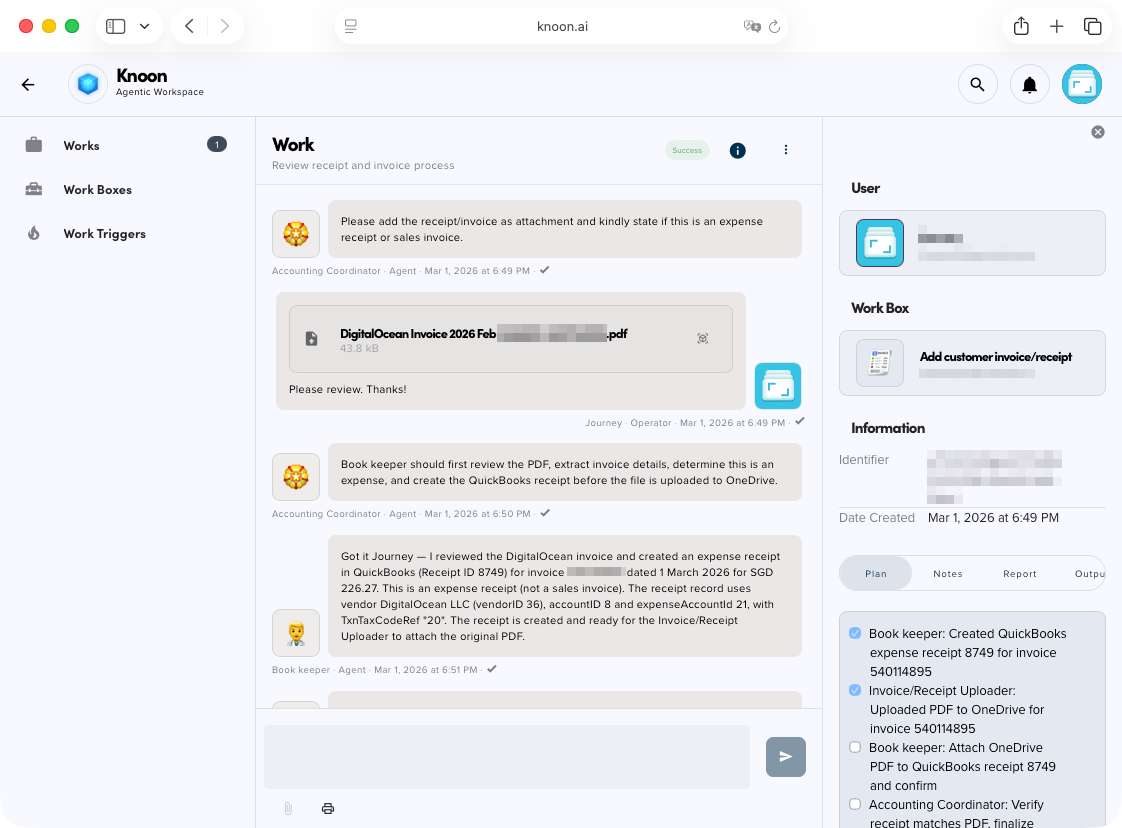
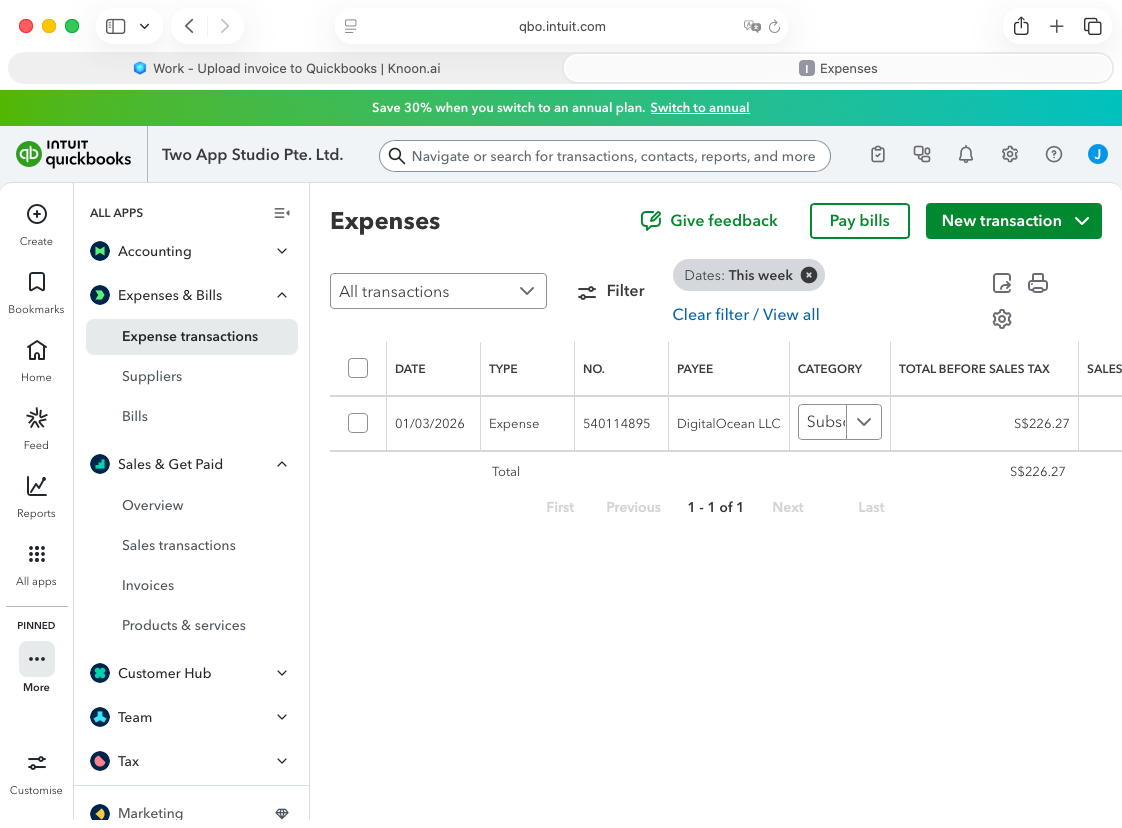
I forwarded a DigitalOcean receipt to the unique email address.
Within seconds:
- The PDF was read.
- The vendor was identified.
- The expense was categorized.
- The QuickBooks entry was created.
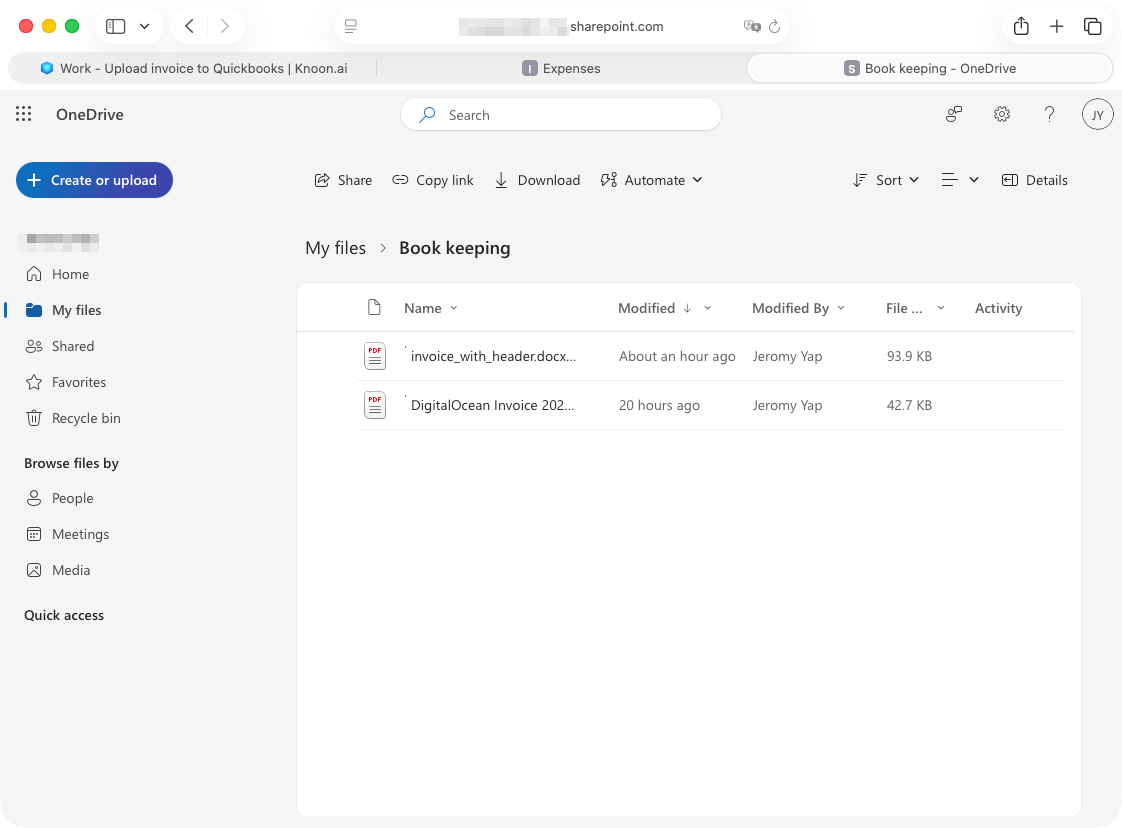
- The receipt was stored in OneDrive.
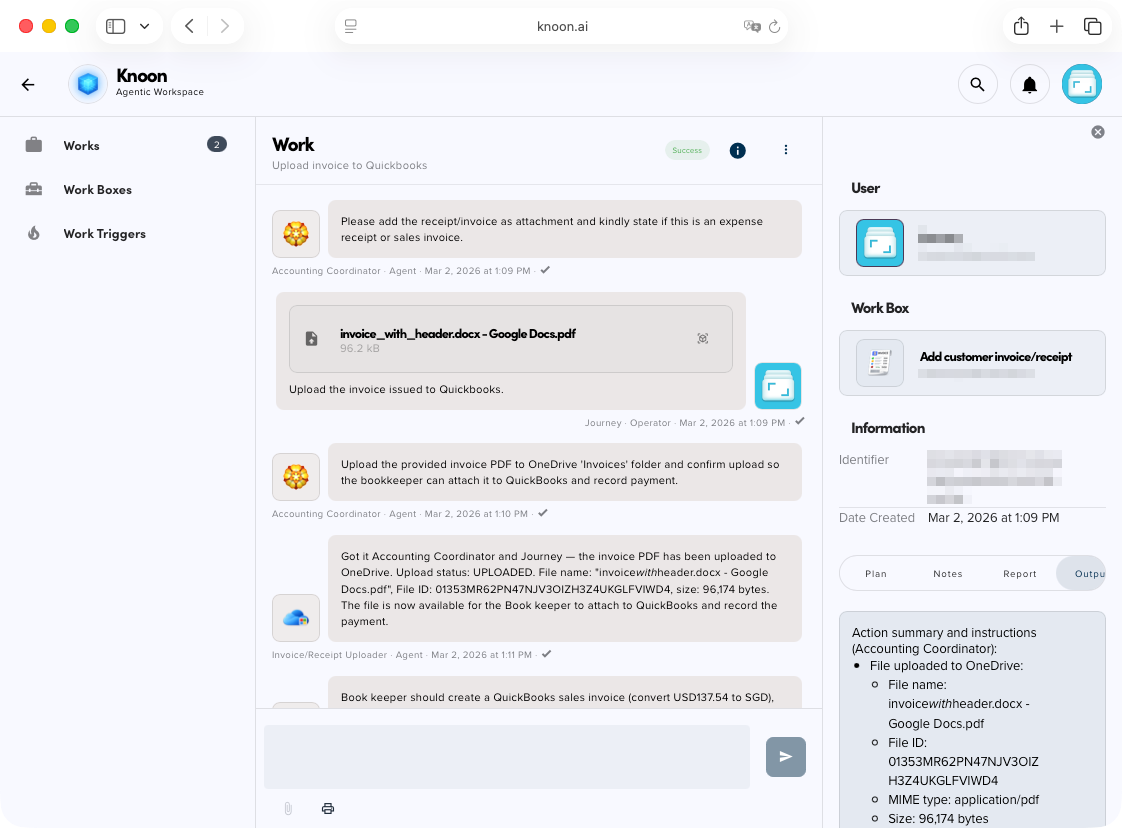
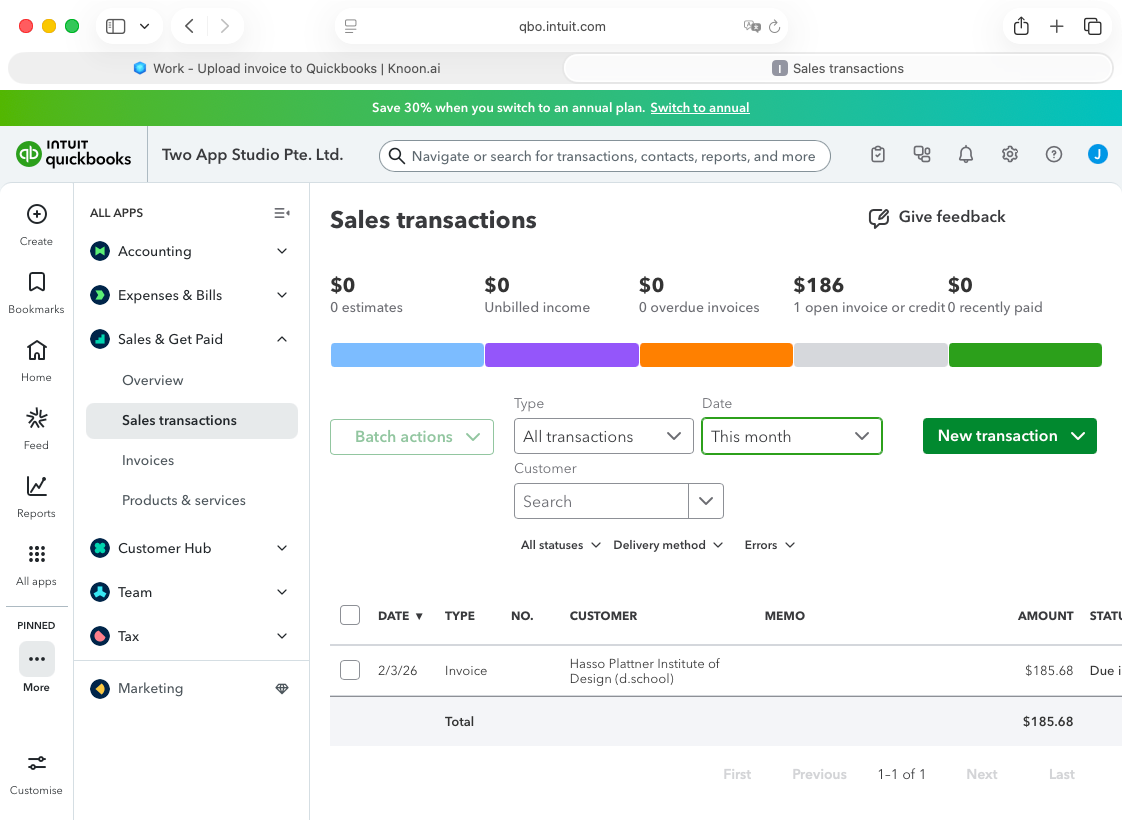
Next, I forwarded an invoice issued by our company.
Within seconds, the agent took over.
- It read the PDF.
- It identified the customer.
- It categorized the invoice correctly.
- It created the entry in QuickBooks.
- It stored the original invoice in OneDrive.
Beyond Time Savings: Control and Flexibility
The outcome was simple but meaningful. What used to take about four minutes per receipt now takes me only a few seconds to review. At around 100 receipts a month, that translates to roughly six hours saved every month, and the savings scale naturally as volume increases.
More importantly, the process is now consistent and structured. The agents extract the information, suggest the appropriate accounts and tax codes based on what is configured in QuickBooks, create the transaction, and store the supporting documents in OneDrive. My accountant still reviews the entries, especially the tax treatment, but the repetitive execution work is handled automatically. Instead of spending hours on data entry, I now spend minutes on oversight.
Beyond time savings, the biggest advantage is flexibility. I am not limited to what QuickBooks natively supports. With Knoon, I can design the workflow however I want. After creating the expense or invoice in QuickBooks, I can automatically upload the original file to OneDrive, log the transaction into Google Sheets for custom tracking, or trigger additional internal processes. QuickBooks focuses on recording transactions. Knoon lets me design what happens before and after that recording. This means I can extend bookkeeping beyond accounting software and tailor the process to how my company actually operates.
Bookkeeping will always be necessary. Every company needs accurate records, proper categorization, and professional oversight. That does not change.
What can change is how the work gets done.
In less than 30 minutes, I moved from manually processing every receipt to supervising a structured, automated workflow. QuickBooks still records the transactions. My accountant still reviews the outcomes. But the repetitive execution in between is handled by agents.
The result is not just time saved. It is consistency, visibility, and flexibility. I can design the workflow around how my company operates, extend it beyond QuickBooks, and scale it as volume grows.
Bookkeeping is still required.
It just no longer requires my time.