

How a Singapore Contractor Firm Uses AI Agents to Reduce Bookkeeping Work

In many contractor firms, bookkeeping is not just accounting. It is part of daily operations. Receipts arrive constantly from job sites. Supervisors buy materials, send photos of receipts through WhatsApp, and someone in the office has to organize everything.
This was the situation at Larry Contractors Pte Ltd, a contractor firm in Singapore. Like many SMEs in the construction industry, their bookkeeping process was mostly manual and time consuming.
By introducing AI agents through Knoon, they were able to automate a large part of this workflow and significantly reduce the time spent managing receipts and recording transactions.
The Problem: Receipts Everywhere
Larry Contractors runs multiple projects at the same time. Every day, job supervisors purchase materials such as hardware, tools, and site supplies.
Most purchases follow a similar pattern:
- Supervisors buy materials from nearby suppliers
- They pay either by cash or company bank card
- The shop issues a receipt
- The supervisor sends the receipt photo through WhatsApp
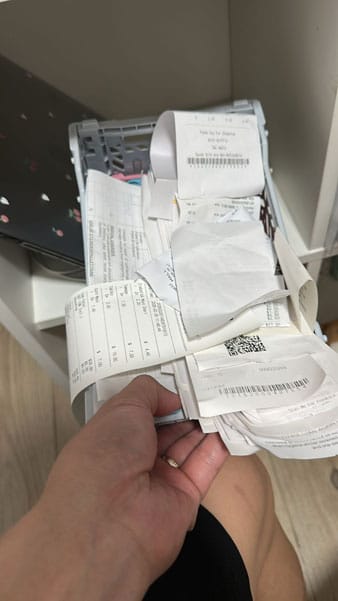
While this sounds simple, it quickly becomes difficult to manage.
The team had to manually:
- Download receipt images from WhatsApp
- Rename files according to the document number
- Create folders for each receipt
- Upload files to OneDrive
- Check whether GST applies
- Determine the correct chart of account code
- Record the transaction into the accounting software
To make things worse, some receipts also had illegible handwriting, which made the process even slower.
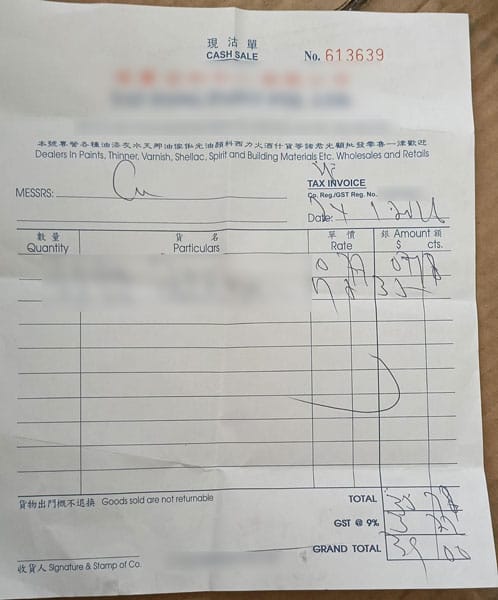
When multiple receipts came in for multiple projects on the same day, bookkeeping quickly became overwhelming.
Larry Contractors uses AutoCount Desktop, a basic accounting software.
Because it is not cloud based, it cannot directly integrate with modern automation tools or APIs. This means transactions cannot be recorded automatically into the accounting system using AI tools or MCP.
As a result, the manual preparation of the cashbook consumed many hours each month.
Why Traditional Automation Tools Struggle
The bookkeeping AI workflow might appear simple, but it contains many decision points.
For example:
- A receipt may contain tax (for example, 9% GST in Singapore)
- The account code must match the correct item in the chart of accounts
- Payment could be cash or bank
- If bank, the system must specify which bank account
- Receipts may contain multiple items in PDF or JPEG format
- One file attachment may contain multiple receipts
- The folder storing the receipts must be named after the document number in the accounting software
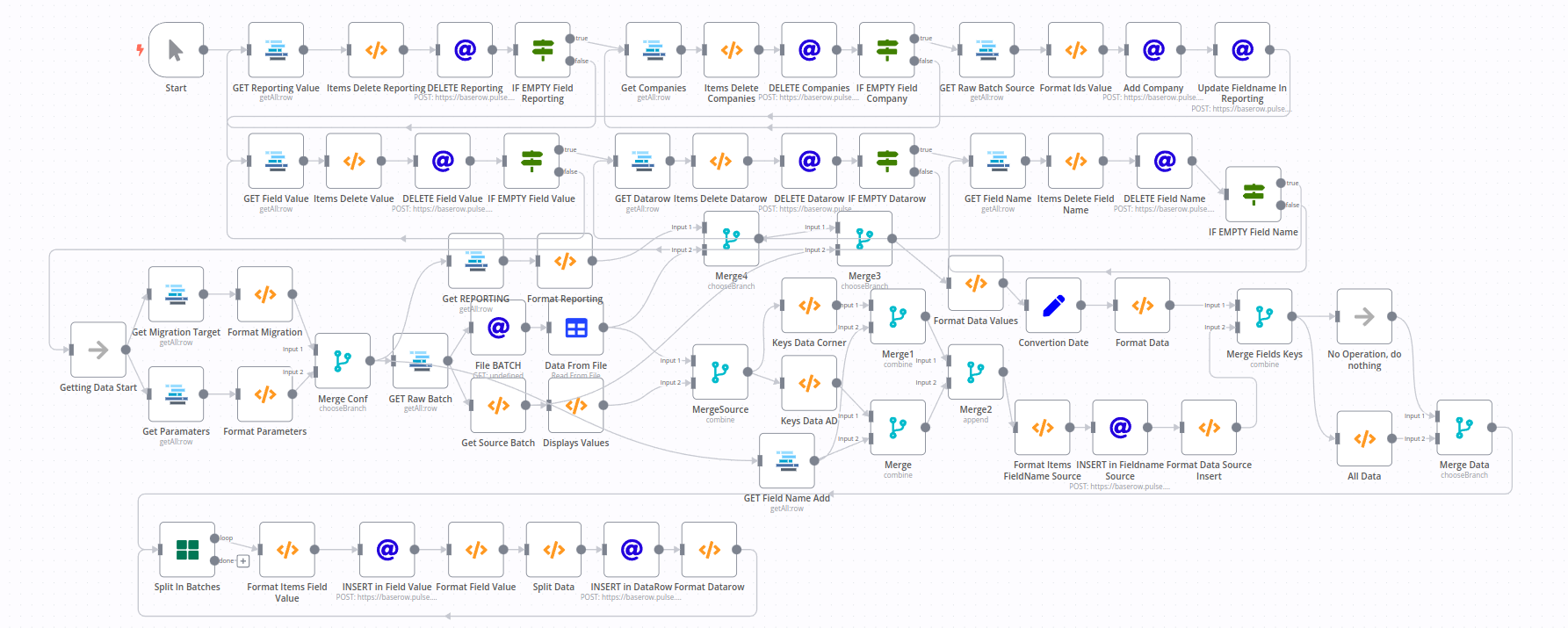
Traditional workflow tools such as N8N struggle with this type of logic because it requires:
- Document understanding
- Contextual decision making
- Multi step reasoning
- Understanding of workflow
- Maintenance of workflow
- Knowledge of coding
This is where agentic AI platforms like Knoon become useful.
Introducing AI Bookkeeping Agents
Using Knoon, Larry Contractors built a small team of AI agents to handle the bookkeeping process. The system consists of creating several specialized agents:
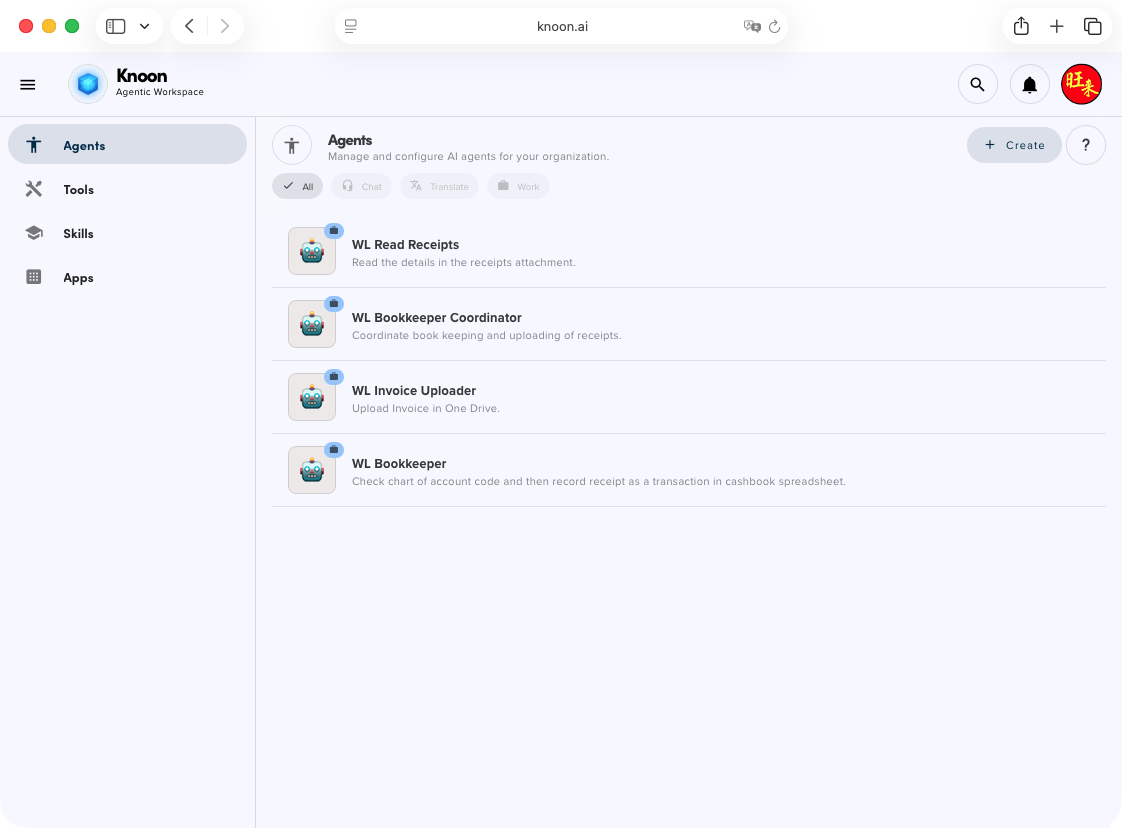
🧑🏻💼 Bookkeeper Coordinator
Coordinates the bookkeeping workflow and decides which tools or agents to trigger next.
🧾 Read Receipts Agent
Reads receipt attachments and extracts information such as:
- Supplier name
- Amount
- Tax (e.g. GST)
- Payment type
- Receipt date
📤 Invoice Uploader
Uploads receipt files into the correct OneDrive directory. If the folder does not exist, the agent automatically creates it.
✍🏻 Bookkeeper
Matches transactions with the correct chart of accounts and records them into the cashbook spreadsheet.
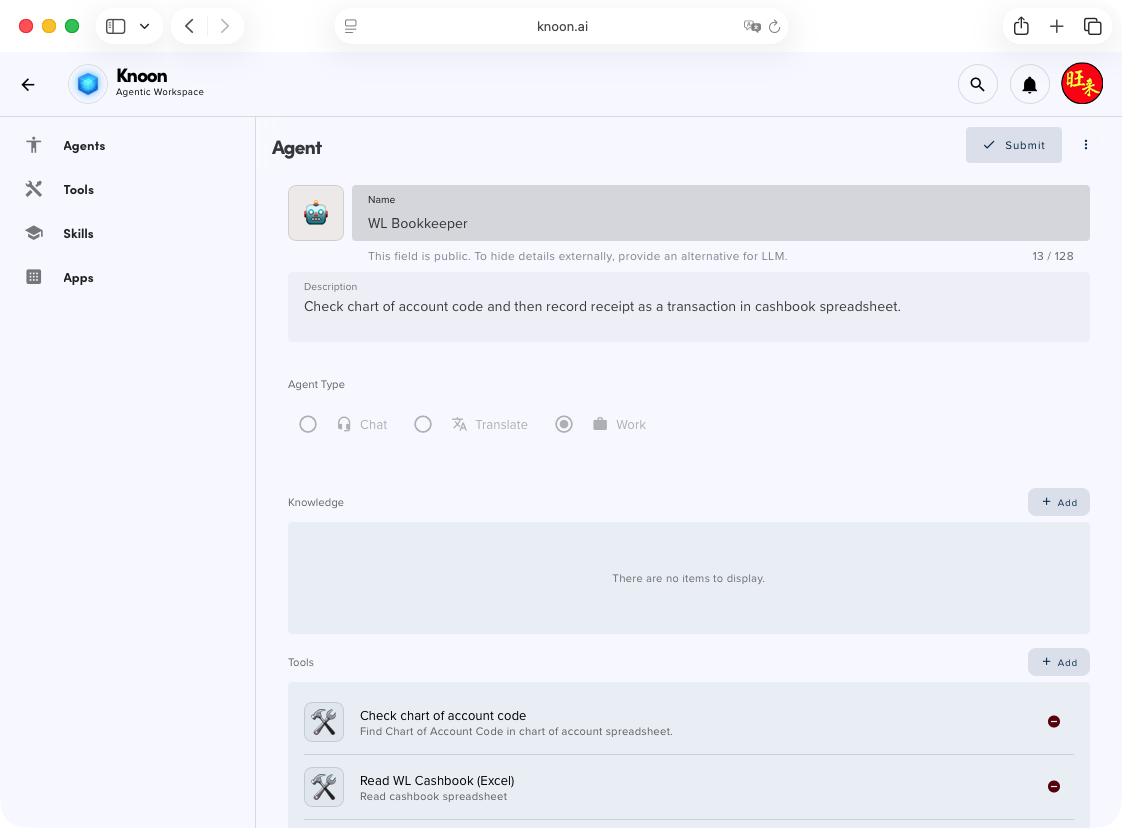
Tools Used by the Agents
The agents interact with several tools that automate different steps.
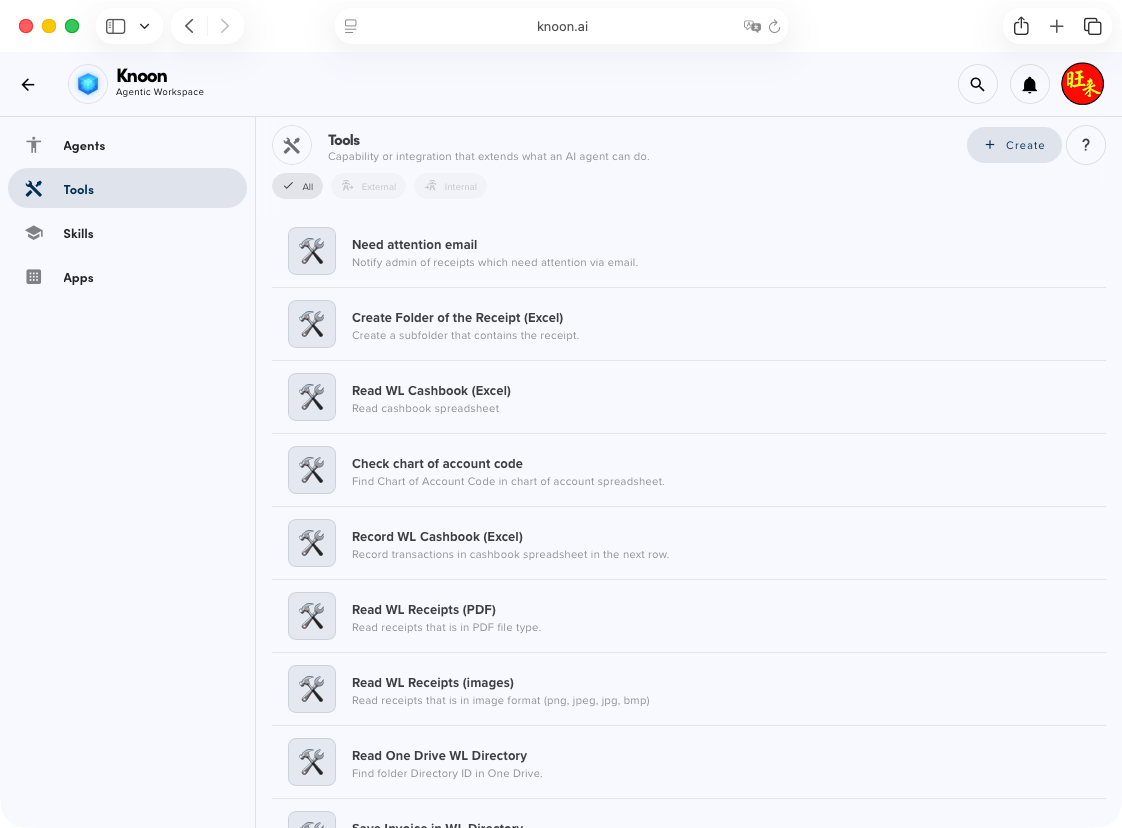
Key tools include:
Read Receipts (PDF / Images)
Extract data from receipts in PDF or image format.
Check Chart of Account Code
Match expenses with the correct accounting category.
Create Folder of the Receipt in OneDrive
Automatically create a OneDrive folder named after the document number.
Save Invoice in a OneDrive Folder
Store receipts in the correct OneDrive folder.
Read Cashbook
Read the cashbook spreadsheet.
Record Cashbook
Insert a new transaction row using the AutoCount cashbook spreadsheet format.
How the Workflow Works
Once the workbox is set up, you can start running the work.
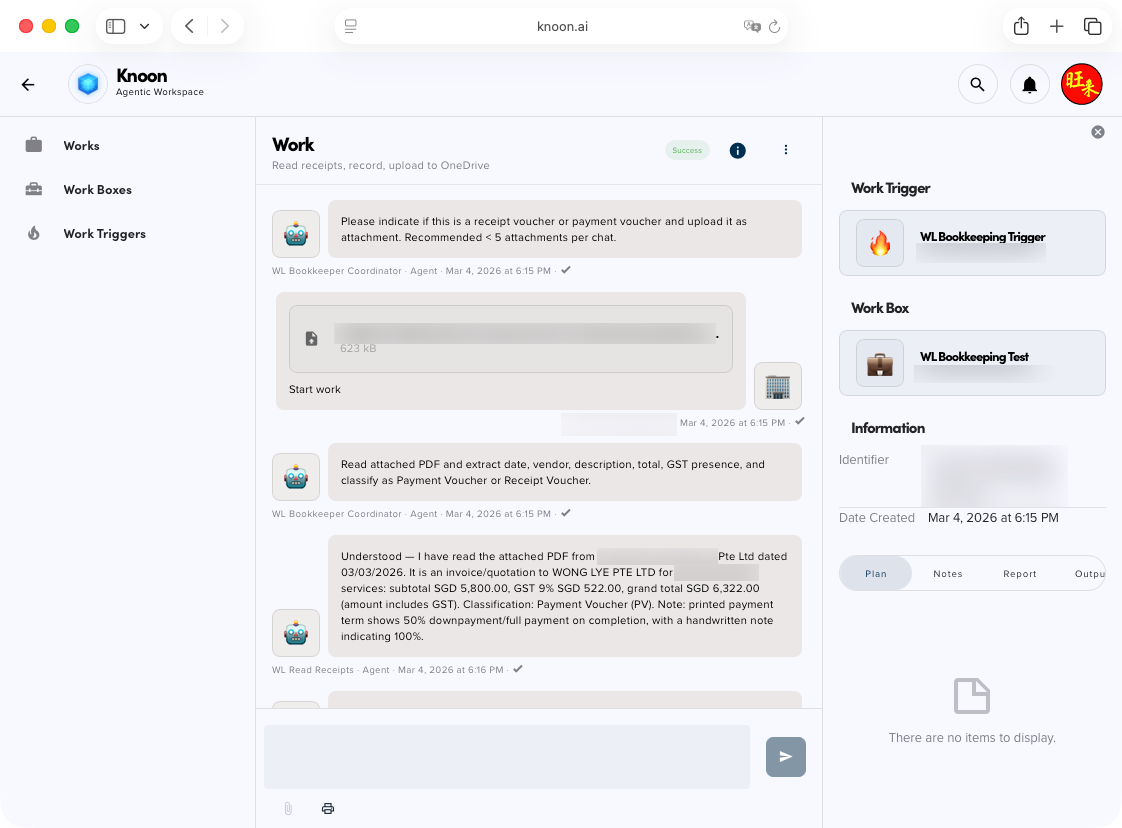
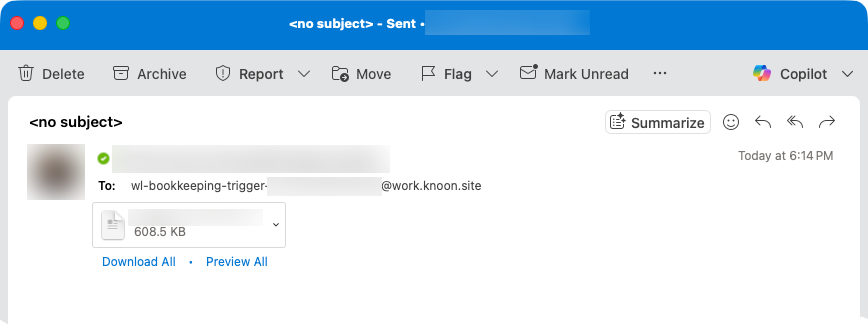
Step 1: Receipt Arrives
A supervisor sends a receipt photo or PDF via email. The system detects the attachment through an email trigger connected to the company workflow.
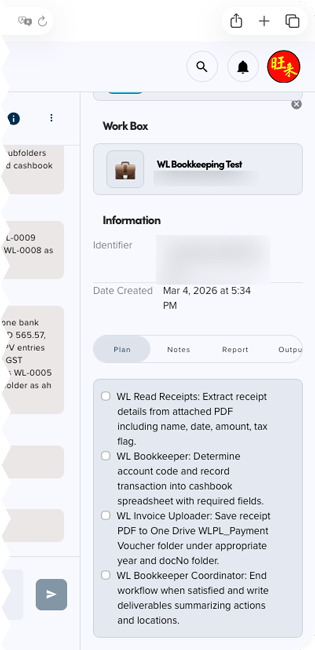
Step 2: The Bookkeeping Coordinator Agent Creates a Plan
The Bookkeeping Coordinator Agent determines the steps required to process the transaction. It decides which tools and agents should be triggered next, such as reading the receipt, checking the chart of accounts, creating the correct folder in OneDrive, and recording the transaction in the cashbook.
Step 3: Read Receipts Agent Reads the Receipt
The Read Receipts agent analyzes the image or PDF and extracts:
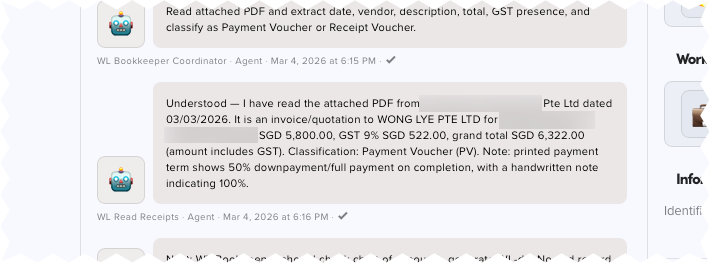
- Date
- Supplier
- Total amount
- GST amount
- Payment method
Even if handwriting is messy, the AI can often infer the correct values.
Step 3: Determine Accounting Details
The Bookkeeper Agent then:
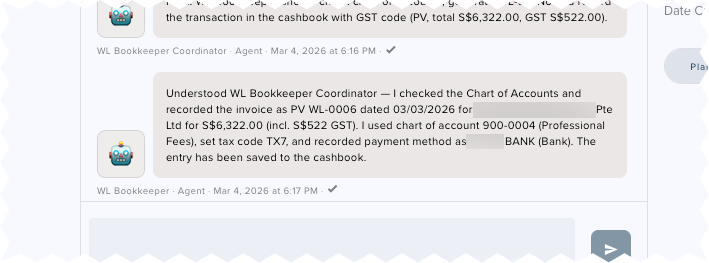
- Checks the chart of accounts
- Determines the correct expense category
- Verifies whether GST applies
If the payment was made by bank, the agent also records which bank account was used.
Step 4: Record the Transaction
The Bookkeeper Agent records the transaction in the cashbook spreadsheet using the format required by AutoCount.
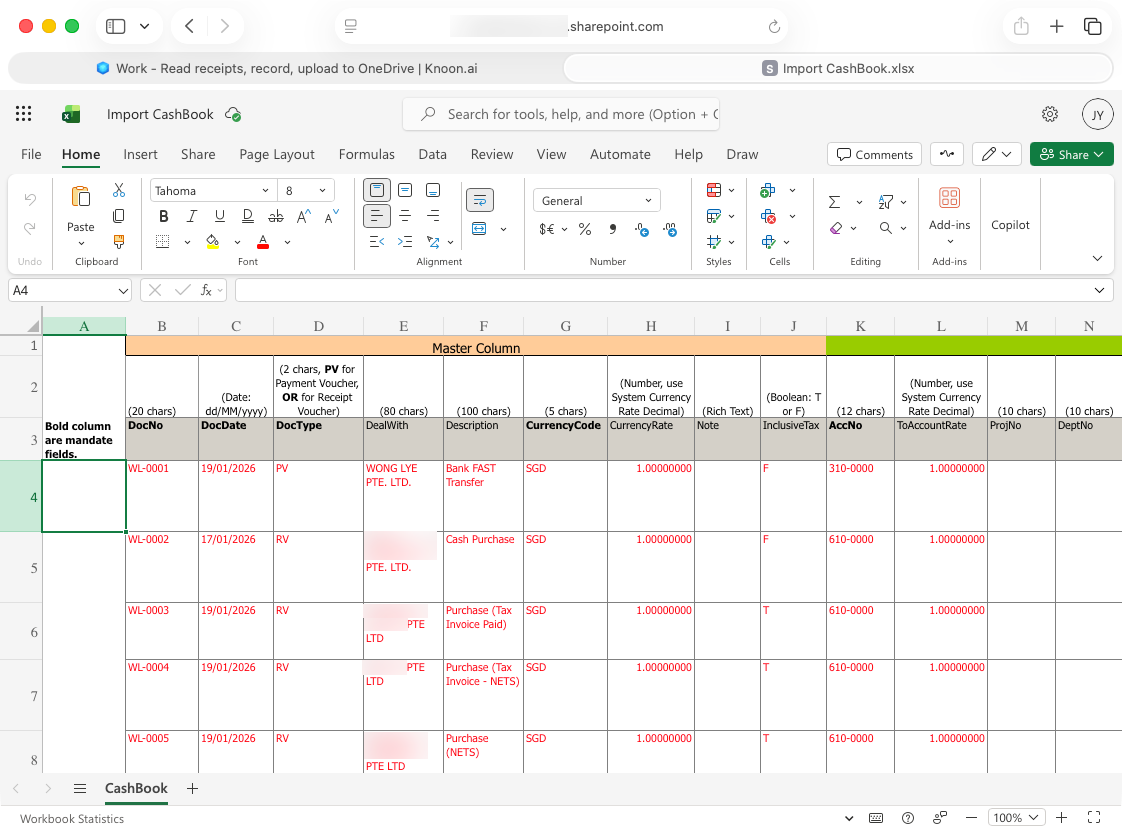
This includes:
- Document number
- Vendor name
- Transaction date
- Description
- Account code
- Whether tax is included
- GST code
- Payment account
When the accountant receives the spreadsheet later, it can be imported directly into AutoCount.
Step 5: Organize the Files
Finally, the Invoice Uploader Agent:
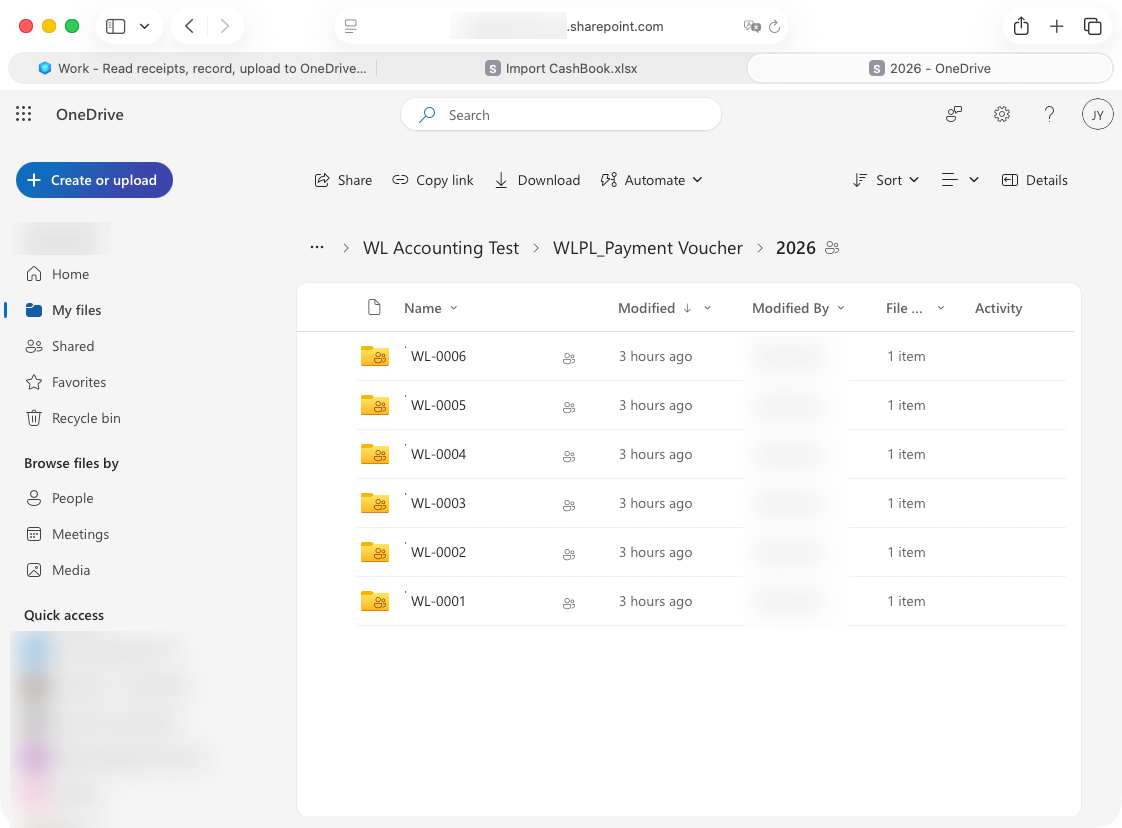
- Creates a receipt folder named by Document number
- Uploads the receipt into OneDrive
- Ensures files are organized consistently
The Results
After implementing AI agents with Knoon in less than an hour, Larry Contractors significantly simplified and modernised its bookkeeping workflow while keeping its existing accounting setup.
Less Manual File Handling
Receipts are automatically organized and stored in the correct OneDrive folders. The system creates folders using the document number and uploads the receipt files accordingly. Previously, staff had to download receipt photos from WhatsApp, rename the files, create folders manually, and upload everything one by one.
Faster Bookkeeping
Transactions are recorded automatically in the cashbook spreadsheet. The AI reads the receipt, extracts key information such as supplier name, amount, GST, and payment method, and fills in the required fields. This removes the need to manually type every transaction entry.
Better Record Keeping
Receipts are consistently named and stored in an organized structure. This makes it easier to retrieve documents later when reviewing project expenses, preparing financial reports, or responding to audit requests.
Reduced Monthly Workload
Instead of manually compiling receipts and transactions, the accountant receives a prepared cashbook file that already follows the AutoCount import format. The file can then be imported directly into AutoCount during the monthly or quarterly accounting process. The new agentic workflow reduced the monthly workload by 80% - 90%!
Flagging Receipts That Require Manual Review
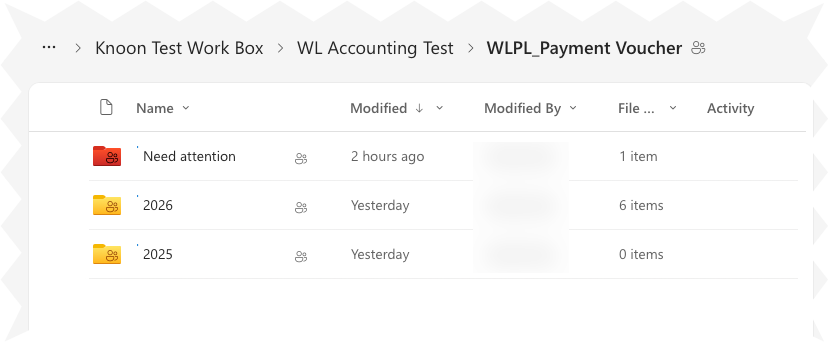
Some receipts may contain illegible handwriting or unclear information, making it difficult to accurately extract the required details. When the AI agents detect that key fields such as vendor name, amount, or tax information cannot be confidently determined, the receipt is automatically saved to a “Need Attention” folder in OneDrive.
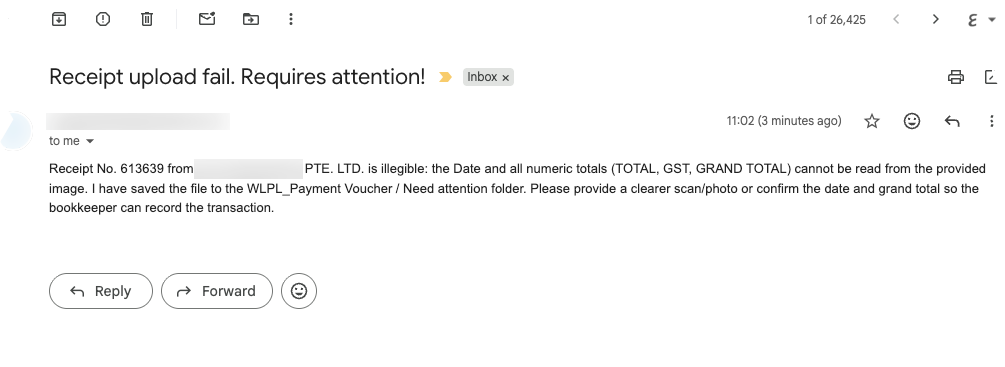
At the same time, an email notification is sent to the administrator, prompting them to review the receipt and follow up with the supervisor if clarification is needed. This ensures that problematic receipts are flagged early and prevents incorrect bookkeeping entries.
Time Savings
The firm typically receives around 30 receipts every few days from various job supervisors across multiple projects. Previously, each receipt required several manual steps:
- Download receipt photo
- Rename the file
- Create a folder based on the document number
- Upload the receipt to OneDrive
- Record the transaction in the cashbook
Each receipt could take 2 to 3 minutes to process. With 30 receipts, this adds up to roughly 60 to 90 minutes of work every few days.
With AI agents handling most of these steps, staff now only need to review the results instead of performing the entire process manually.
Less Manpower Required
By automating repetitive administrative work, the company no longer needs additional manpower to handle bookkeeping as the number of projects grows. This results in an estimated monthly cost saving of $3,000 to $5,000.
Better Spending Visibility
With transactions recorded in a consistent format, the company can more easily review and audit spending across projects. This helps management track material costs and identify unusual expenses earlier.
Works With Existing Workflow and Software
One key advantage of this approach is that Larry Contractors did not need to replace its existing accounting system. The company continues to use AutoCount Desktop, even though it does not support modern cloud APIs. Instead, the AI agents work alongside the current workflow: receipts are organized and stored in OneDrive, transactions are recorded in an Excel Online cashbook using the AutoCount import format, and the accountant simply imports the file into AutoCount monthly or quarterly. This allows the firm to modernize its bookkeeping process while continuing to use the software and workflow they are already familiar with.
For many contractor firms, bookkeeping is a daily operational task driven by receipts from multiple job sites. What appears simple quickly becomes time consuming when receipts must be downloaded, renamed, organized, and manually recorded.
With Knoon, Larry Contractors deployed an AI-powered bookkeeping workflow in under an hour, without writing any code. Receipts can now be read, organized, and recorded automatically while staff only review the results. Most importantly, this works with their existing AutoCount Desktop system, allowing the firm to modernize its workflow without replacing the software they already rely on.