

Automating Your CSAT Score Tracking with Knoon Agents and Excel

Customer Satisfaction (CSAT) is one of the simplest yet most powerful indicators of how well your business is serving customers. But collecting feedback, calculating scores, and keeping dashboards updated can be time-consuming especially when done manually.
With Knoon’s agentic AI and a simple Microsoft Excel sheet, you can fully automate your CSAT feedback workflow. Your agents collect responses, record them instantly, and your Excel file calculates the final CSAT score for you. No scripts, no formulas to maintain, and no manual updates.
In this guide, we’ll walk through how the setup works and provide a sample Excel template you can use immediately.
Agentic AI for Automated CSAT Recording & KPI Calculation
This agentic process uses two components:
- Knoon Agents: Chat-based AI assistants that automatically request customer feedback at the end of a conversation and collect the rating, name, and email.
- Microsoft Excel Tool: A connected spreadsheet where the agent records each submission and updates your CSAT KPI in real time.
After resolving the customer’s issue, your customer support agent gathers the feedback and instantly writes the data into your Excel file.
No manual steps required.
Here's how you can do it.
CSAT Excel Template
The Excel template contains two sheets, "Submission" and "CSAT Score".
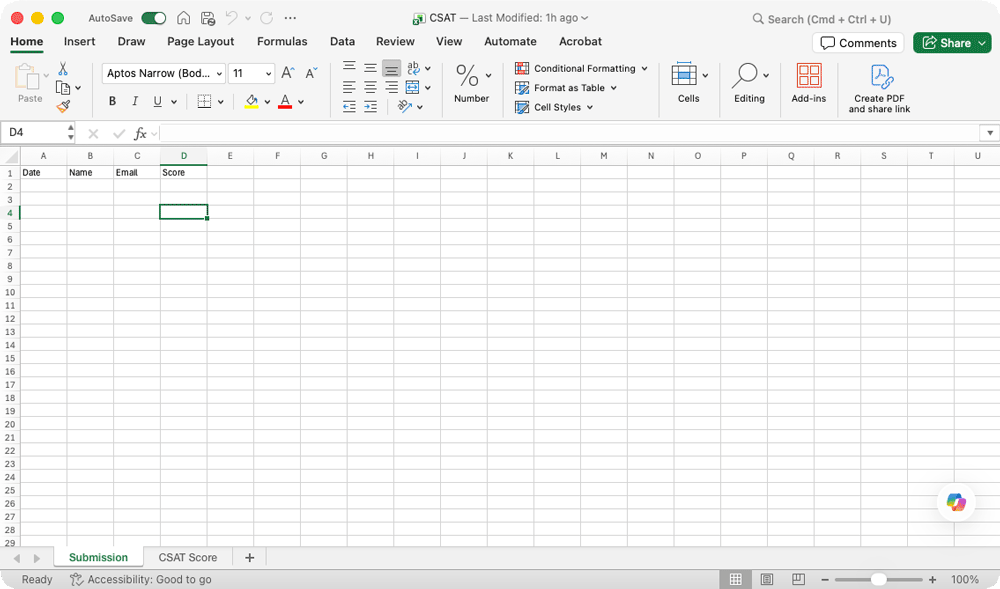
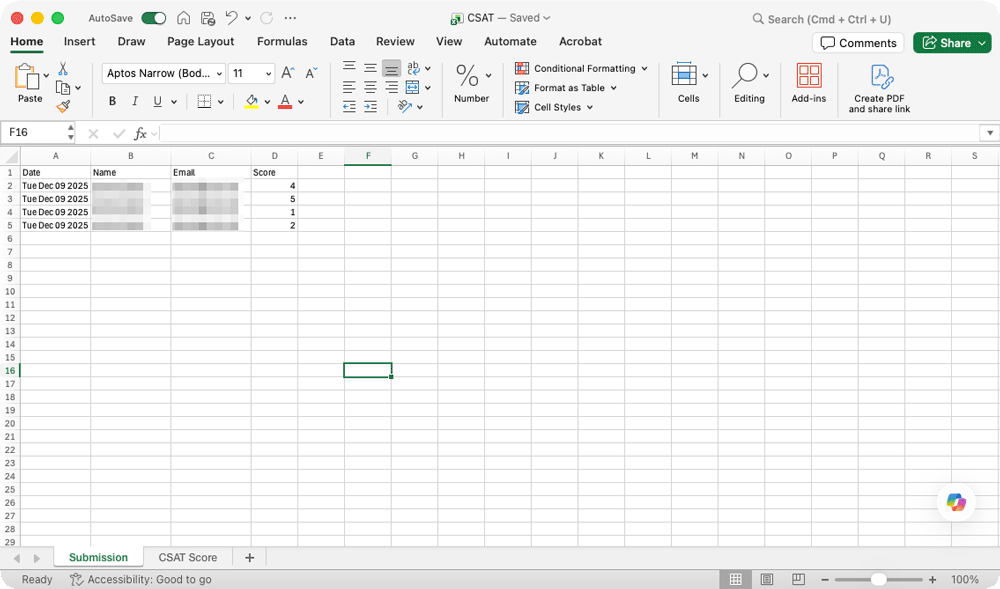
In the "Submission" sheet, each row represents one customer response, captured instantly by your Knoon agent.
Columns include:
- Customer Name
- Date
- CSAT Score (1–5, where 5 is excellent)
Whenever a customer completes the CSAT flow, the agent appends a new row here using the Microsoft Excel tool in Knoon.
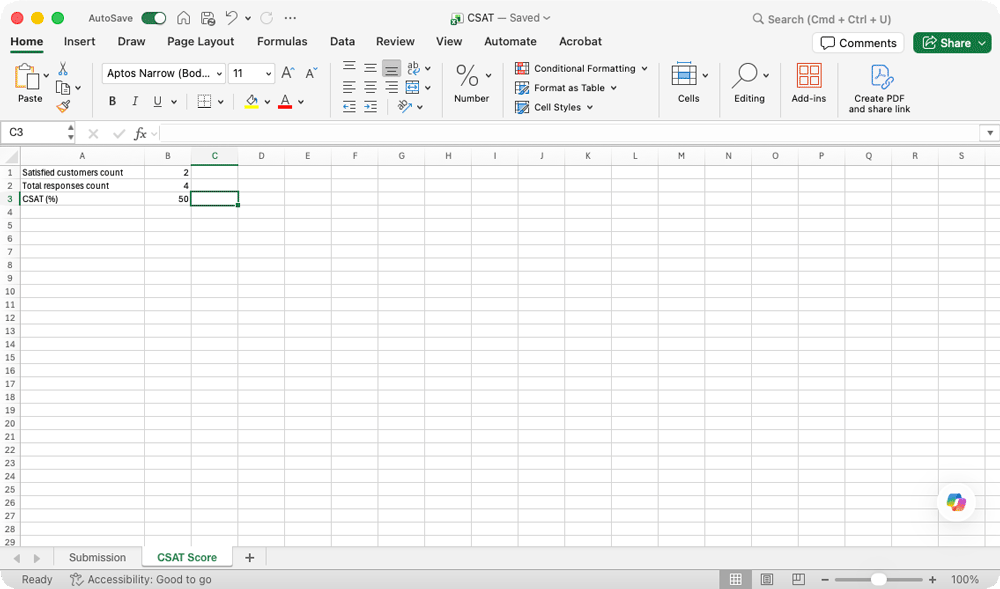
In the "CSAT Score" sheet, it automatically calculates your realtime CSAT score using a simple formula:
CSAT Score = (Total Positive Ratings ≥ 4) ÷ (Total Feedback) × 100Create a Microsoft Excel Tool
Next, we set up a tool that inserts a new customer feedback entry into the Excel file as soon as the agent receives it.
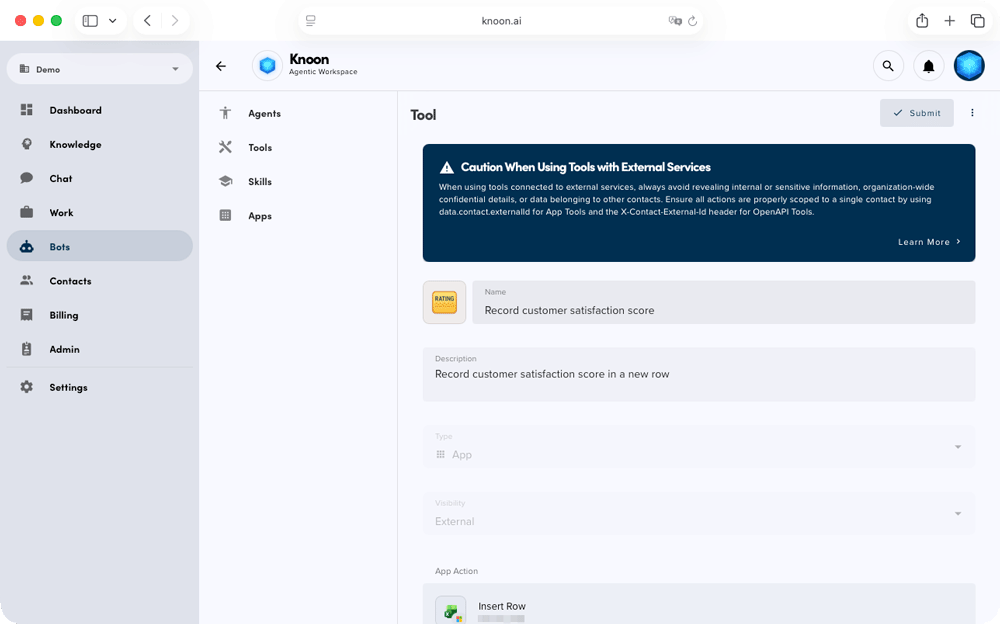
- Open Knoon.
- Go to Bots → Tools.
- Press Create.
- Enter a name "Record customer satisfaction score" and description "Record customer satisfaction score in a new row" for your tool.
- Choose App as the Tool Type.
- Press Select an App Action.
- Pick Microsoft → Microsoft Excel.
- Choose an action "Insert Row".
- Choose the
CSAT-sample.xlsxfile you’ve uploaded to your OneDrive. - Define an agent variable. Insert name "CSAT" and description "This is the CSAT score given by the customer from 1 - 5".
- Configure action payload:
workSheetName:Submission
startCell:A1 - Under the array configuration, include four items:
fullDate,{{data.contact.displayName}},{{data.contact.email}}, andCSAT. - Press Submit.
Attach the Tool to an Agent
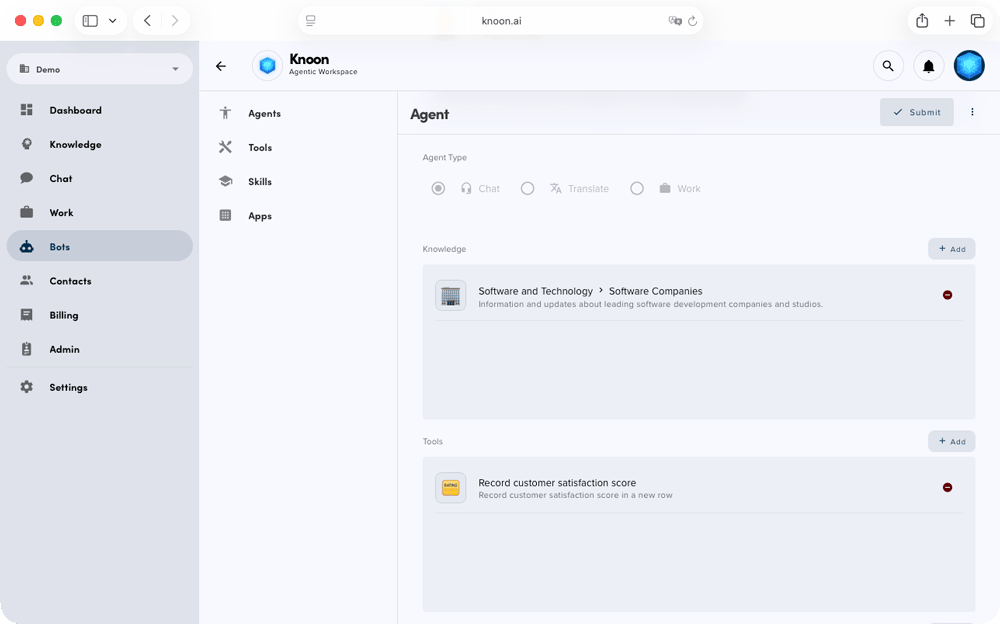
- Go to Bots → Agents.
- Select an agent.
- Scroll to the Tools section.
- Select the Microsoft Excel tool you created.
- Press Submit.
Instruct the Agent to Ask for a Satisfaction Rating Before Ending the Conversation
In the chatbox, tag the agent name and remind it to ask for a satisfaction rating before ending the conversation. This ensures the agent consistently prompts for feedback and triggers the automated CSAT submission workflow.
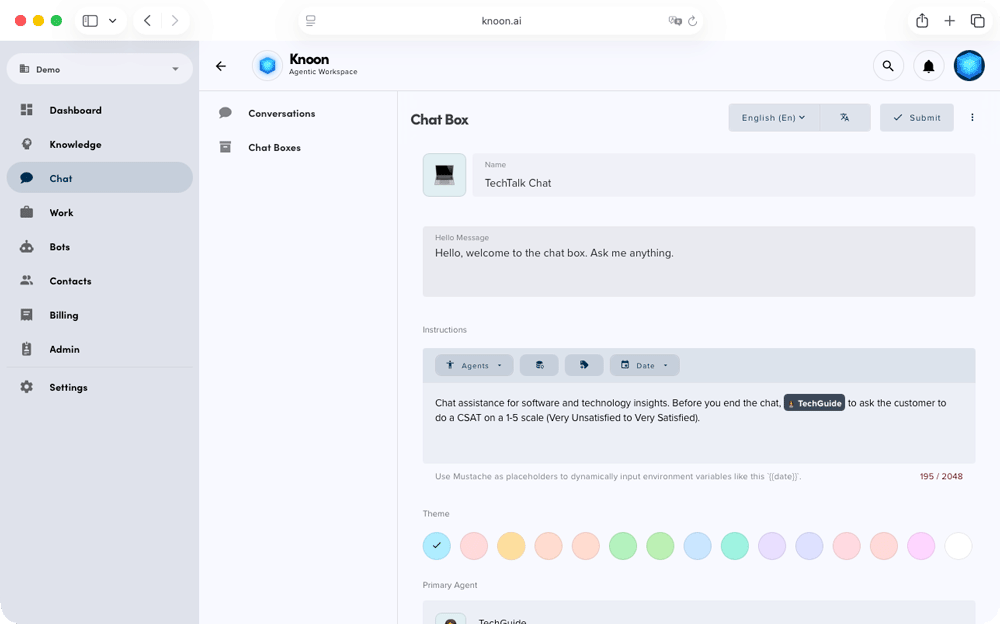
- Go to Chat → Chatboxes.
- Select a chatbox.
- Scroll to the Instructions section.
- Add this instruction:
Before you end the chat, {{name of agent}} to ask the customer to do a CSAT on a 1-5 scale (Very Unsatisfied to Very Satisfied). - Press Submit.
Demo Workflow: Recording a CSAT Score Before Ending the Conversation
In this demo, we’ll walk through how a Knoon agent automatically collects and records a CSAT score at the end of a support conversation.
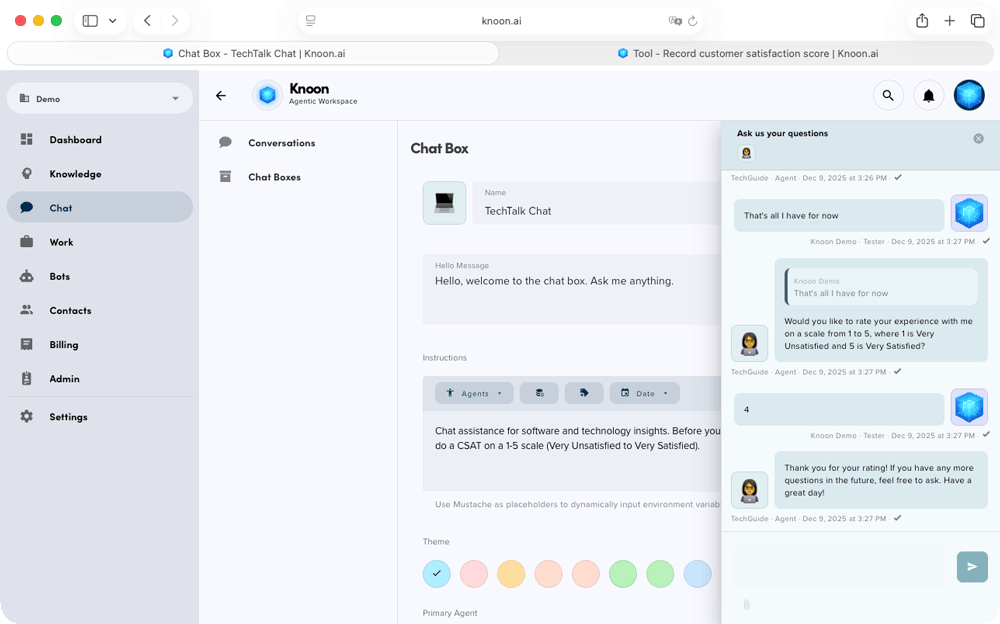
After helping the customer resolve their issue, the agent prompts them for a quick satisfaction rating (1–5). It also gathers the customer’s name and email. Once the customer responds, the agent then uses the Microsoft Excel tool to insert this entry as a new row into the submission sheet of your CSAT Excel file.
As soon as the row is added, the "CSAT Score" sheet displays the final CSAT percentage automatically, ensuring your KPI dashboard always reflects the latest customer sentiment.
This seamless workflow happens entirely behind the scenes, giving customers a smooth feedback experience while your CSAT metrics stay up to date without any manual effort.
Automating CSAT collection with Knoon and Microsoft Excel gives your business a simple, reliable and scalable way to measure customer satisfaction. By allowing agents to gather feedback and update your KPI dashboard instantly, you eliminate manual work and ensure your metrics stay accurate in real time.
With this setup in place, your team can focus on delivering better customer experiences while Knoon handles the rest.